Everything a worker hands you now opens in a window
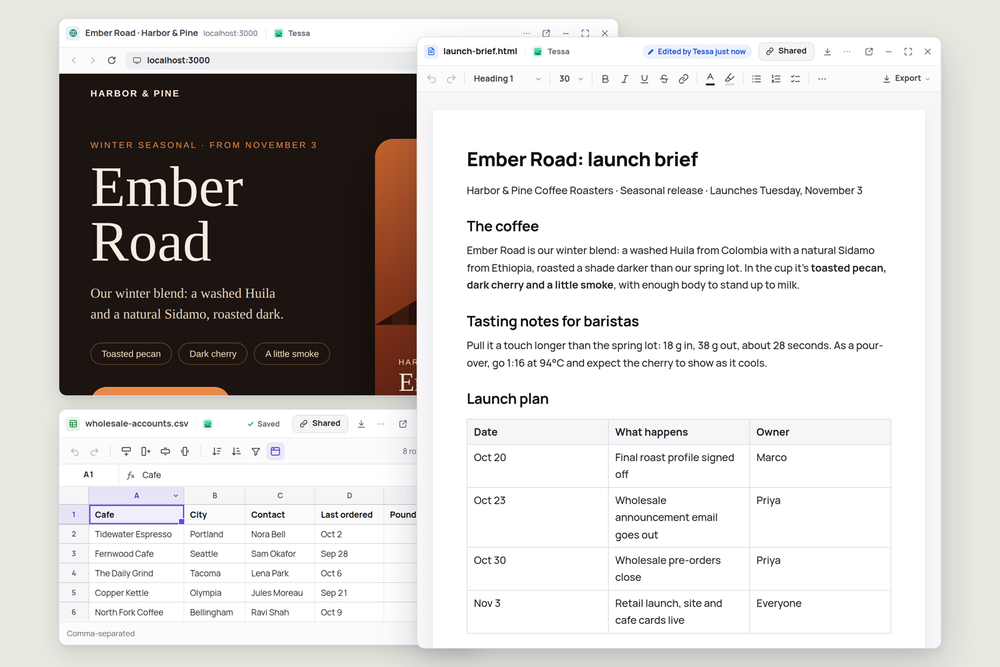
Until now, asking a worker for a launch kit got you a pile of attachments. A brief, a spreadsheet, an email draft, a link to a site. Each one meant a download, another app, and a question about which copy was the latest.
Now each file opens in its own window, right inside Midpoint. Read it, edit it, and keep it open next to the conversation while the worker gets on with the next piece.
You and your worker edit the same file
A window isn't a copy. It's the file on your worker's computer.
Type a change and it saves to that file within a second or two. Ask the worker to add a section and it shows up in the window you already have open, marked "Edited by Tessa just now". If you both change the same spot at once, Midpoint shows you their version and lets you choose, so nobody's work disappears.
So you're not checking work and sending it back. You're working on it together.
Every kind of work gets the right window
The worker picks the format that suits the job. You click it.
Documents open as a page with real styles, headings and tables, like the brief above. Download one as a PDF or a Word file when it needs to leave Midpoint.
Spreadsheets open as a grid you can type into. CSV stays CSV, and Excel files keep their formulas and formatting.
PDFs open in a viewer where you can highlight, add text, draw, sign and fill in forms.
Slides open as a deck you can page through, edit the words on, and present.
Code opens in an editor, and a Changes view shows exactly what the worker changed, file by file.
Email drafts open as a real email. Read it, fix a line and send it from the worker's own address.
Websites the worker builds run on its own computer and open live in a window. Every site your workers are running is also listed under Hosted in the sidebar.
Workflows open as their steps, with the schedule, recent runs and each script one click away. Switch one on or off, or run it now.
Open as many as you like
Windows float, resize and stack, like the window onto your worker's computer. Put the brief next to the spreadsheet, minimise the email until you're ready for it, and keep the conversation in view behind them. On a phone, each one opens full screen.
When one window isn't enough room, pop it out. Any window can leave the Midpoint tab and become a browser window of its own, so the sheet can sit on your second monitor while you work on the brief.
Share it with people outside Midpoint
Some files are for people who don't use Midpoint yet. From any window you can share the file by email, with your whole workspace, or with anyone who has the link. Each share can be view-only or editable, and you can ask for a password to open it or just to edit it.
It's still a link to the same file, so their edits land where yours do.
Try it
Ask any worker for something you'd normally get as an attachment: a brief, a price list, a draft to a customer, a page for a launch. When it posts the file, click it.
"Put together a launch kit for our new blend: a styled brief, a sheet of our wholesale accounts with a suggested first order, a draft email to them, and a one-page site. Attach each piece here."
More articles
AI Agent Incident Communication Plan: Templates, Cadence, and Evidence
A practical AI agent incident communication plan with severity criteria, stakeholder templates, status cadence, evidence, and follow-up.

AI Agent Data Privacy Checklist: Controls That Hold Up in Production
A practical enterprise checklist for classifying agent data, minimizing access, controlling retention and transfers, redacting evidence, reviewing vendors, and proving incident readiness.

AI Agent Observability Tools Compared: A Practical Buyer Guide
Compare eight AI agent observability approaches by traces, tool calls, evaluations, cost, privacy, alerts, deployment, and OpenTelemetry support.