Pop out any window, and share a worker's file with anyone
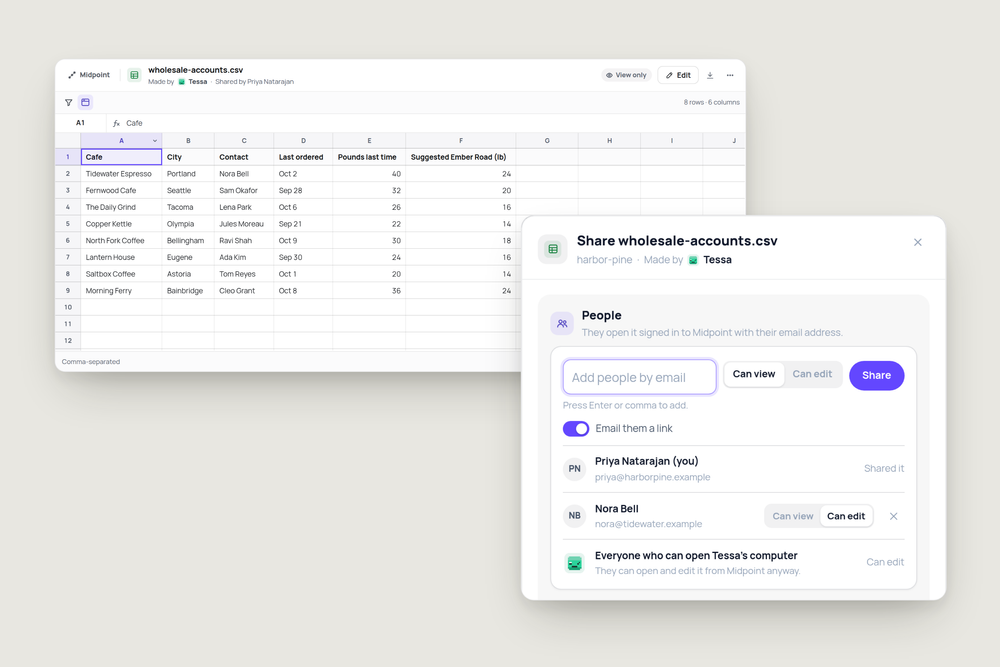
Every file a worker hands you now opens in its own window. Two things tend to happen next. You want the sheet on your other screen while you read the brief, and you want to send the brief to someone who doesn't use Midpoint. Both are now built into every window.
Pop it out onto your other screen
Every window's title bar now has Open in its own window, next to Minimize. Press it and the window leaves the Midpoint tab and becomes a browser window of its own, the same size and in the same spot. Drag it to a second monitor, resize it, and switch to it like any other app.
It's the same window, not a copy. Edits still save to the worker's file, and changes Tessa makes still show up as she makes them. Its title is the file's name and the worker's, so you can find it in your window switcher.
It works for documents, sheets, PDFs, decks, code changes, workflows, the sites a worker builds, and the window onto a worker's computer. A window you pop out again goes back where you last left it. Open the same file from the tab and Midpoint brings the popped-out window forward instead of opening a second one. When you're done, Put back in Midpoint returns it to the tab.
Share a file with someone outside Midpoint
Press Share on a file a worker made, and choose who can open it:
- People by email. They get a link and open it signed in with that address.
- Everyone in your workspace.
- Anyone with the link.
Each person and each link is either Can view or Can edit. A line under the choice says plainly what it allows, for example "Anyone with the link and the password can read it. They can't change it."
Ask for a password, to open it or just to edit it
Links can ask for a password. For a view-only link, the password opens the file. For an editable link, you choose: ask for it to open the file, or only to edit, so anyone can read and only people with the password can change it.
The file's name stays hidden until the right password goes in. Tessa's face is on the card, and it follows your pointer around the page.
What the other person sees
The link opens the file on a clean page: its name, who made it, who shared it, and Download. Sheets, documents, PDFs and decks open in the same viewer you use in Midpoint.
It's still the worker's file. When Tessa updates the sheet, the page updates too, and edits made through the link save to the same file. If her computer is asleep, readers see the latest copy and never wake it. Stop sharing turns the link off for everyone at once.
Try it
Ask a worker for something you'd send to a customer, then share it straight from its window.
"Make a one-page price sheet for our wholesale cafes as a document and attach it here. I'll share it with them myself."
More articles
AI Agent Incident Communication Plan: Templates, Cadence, and Evidence
A practical AI agent incident communication plan with severity criteria, stakeholder templates, status cadence, evidence, and follow-up.

AI Agent Data Privacy Checklist: Controls That Hold Up in Production
A practical enterprise checklist for classifying agent data, minimizing access, controlling retention and transfers, redacting evidence, reviewing vendors, and proving incident readiness.

AI Agent Observability Tools Compared: A Practical Buyer Guide
Compare eight AI agent observability approaches by traces, tool calls, evaluations, cost, privacy, alerts, deployment, and OpenTelemetry support.