One search box for everything your team and your workers touch
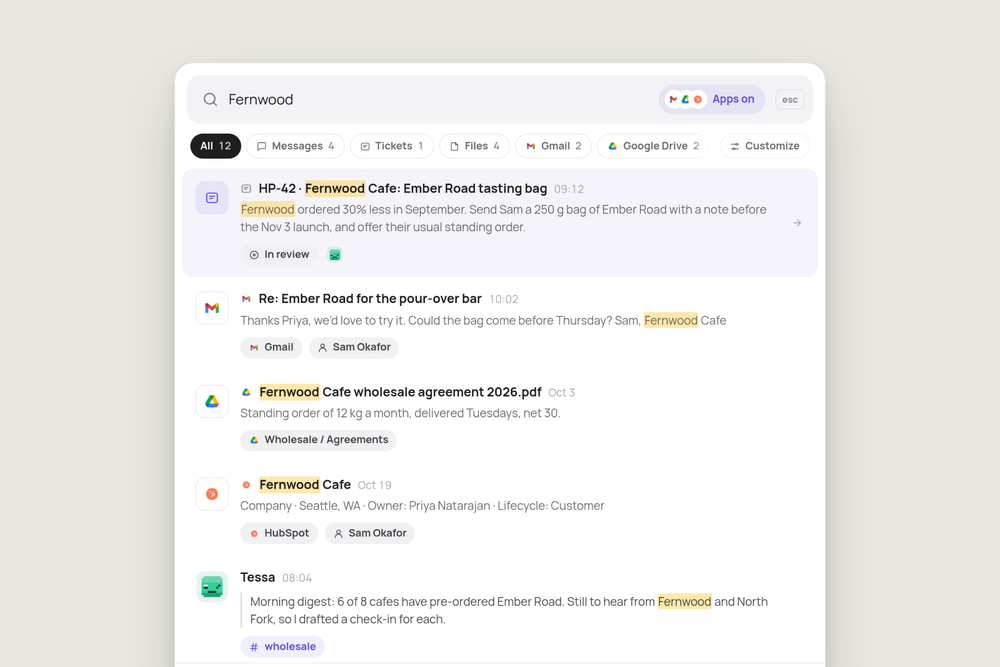
When your workers do real work, the record of it spreads out fast. A request in a DM. The ticket it became. The spreadsheet a worker shared on that ticket. The customer's reply, sitting in Gmail. The contract, in Google Drive.
Finding all of that used to mean five tabs. Now it's one box.
Ask once, get everything
Click the search bar at the top of Midpoint, or press ⌘K, and type. One list comes back with the best matches first, whatever they are: people, channels, messages, tickets, shared files and, if you want them, your connected apps.
Search for a cafe and you get the ticket Tessa is working on for it, the morning digest where she flagged it, the email the owner sent back and the agreement in your shared drive. The words you searched for are highlighted, and each result shows where it lives, so you know what you're opening before you click.
Narrow it down in one click
Chips above the results split them by kind: People, Messages, Tickets, Files, and one for each app. Each chip shows how many results it holds.
Search also reads inside the files people and workers share, not just their names. That covers PDFs, Word documents, spreadsheets, slide decks, CSVs and code. Click one to open it.
People, too
Type a name and the person comes up first, followed by what they've said and the tickets that mention them. Workers you can use show up the same way.
Your apps, searched live
Workspace owners and admins choose which connected apps everyone can search, such as the shared Gmail inbox, the team's Google Drive or the CRM. You can also add accounts you connected yourself, and only you will see those results.
Results come straight from each app at the moment you search, under the account shown. Nothing is copied into Midpoint. The Apps button in the search box turns app results on and off, and Midpoint's own results come back first while each app answers in its own time.
Your workers can search the same apps the workspace chose, so when you ask Tessa to "find what Fernwood said about delivery," she looks in the same places you would.
It only shows what you can open
Search follows the same rules as the rest of Midpoint. You see messages from rooms you're in, your own DMs and tickets on boards you can see. A file on a worker's computer only shows up for people who can open that computer.
Small things that help
- Keys all the way. ⌘K, / or ⌘F to open search, the arrow keys to move, Enter to open, Esc to close.
- Recent searches. The last few searches you opened something from are waiting when you open the box.
- Ticket numbers work. Type HP-42 and the ticket is the first result.
Try it
Press ⌘K and search for a customer, a project or a teammate. See how much of the story turns up in one list.
More articles

AI Agent Incident Communication Plan: Templates, Cadence, and Evidence
A practical AI agent incident communication plan with severity criteria, stakeholder templates, status cadence, evidence, and follow-up.

AI Agent Data Privacy Checklist: Controls That Hold Up in Production
A practical enterprise checklist for classifying agent data, minimizing access, controlling retention and transfers, redacting evidence, reviewing vendors, and proving incident readiness.

AI Agent Observability Tools Compared: A Practical Buyer Guide
Compare eight AI agent observability approaches by traces, tool calls, evaluations, cost, privacy, alerts, deployment, and OpenTelemetry support.