Turn meeting notes into Asana tasks without duplicating work
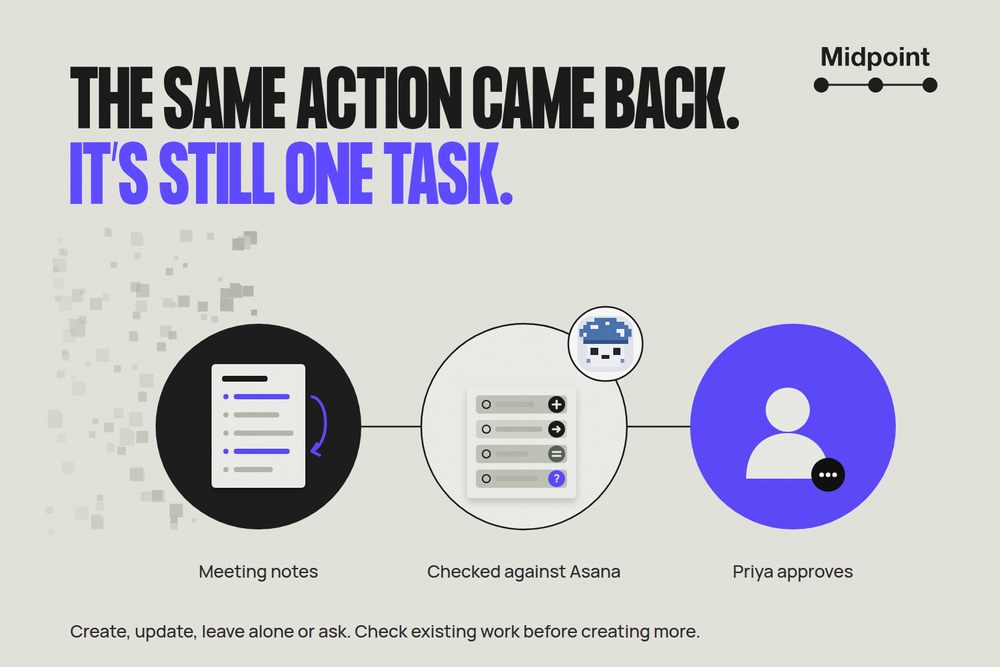
To turn meeting notes into Asana tasks, compare each action with work already tracked. Priya opens this week’s delivery notes and sees last week’s checklist action again, with a new deadline. Copy both lists and her team has two tasks for one commitment.
What she needs is a short list of changes, checked against the project: one existing deadline to update, work that’s actually new to create, repeated commitments to leave alone, and a question where nobody agreed to own the work.
A Midpoint worker can prepare that list from the notes you give it and the tasks it can see. Priya reviews the proposed changes before any of them are made. If every action in your notes really is new, start with something simpler.
Start with Asana’s own route
Asana already turns notes into tasks. Its current Pages feature, formerly Notes, lets you create a task straight from a page, with the context still attached. For a short list of new work, that may be all you need.
If you use Granola, Zapier’s meeting-notes-to-Asana template pulls out actions and priorities, saves a Google Docs record, asks for Slack approval and creates the tasks. You set the project and assignee, and check its dates against the notes, since its default prompt estimates deadlines. Matching tasks that already exist takes extra find and update steps.
A connector can be extended to do that. The real choice is whether you maintain those matching rules yourself or hand the job to a worker and review what comes back.
Compare the second meeting with the first
Before the first meeting, Asana already holds two commitments: revise the delivery checklist by October 16, and publish the internal runbook by October 23. The first meeting’s notes repeat both, with the same owners and scope, so neither needs a new task.
There’s one new commitment: the project lead agrees to test the support handoff by October 20. That becomes its own task. “Operations could help next week” stays a question, because nobody took on the work or agreed on a day.
At the second meeting, the checklist deadline moves to October 19. The runbook and the handoff test come up again, unchanged. The lead also agrees to send a separate internal rollout summary by October 22.
The reviewed list now reads:
- Update: the existing delivery checklist, from October 16 to October 19. Same owner, same scope, same task.
- Create: the internal rollout summary, owned by the project lead, who agreed to it, and due October 22.
- No change: the runbook, still October 23, and the support handoff test, still October 20.
- Question: who will own the operations work, what will they do, and which date do they agree to?
Each line links to the notes and quotes the passage it came from. Lines about existing work also link to the Asana task. Priya can see why the worker treated this week’s checklist as last week’s task, not just trust that the titles look alike. “No change” is listed on purpose, so she never wonders whether a missing line was skipped.
Match the work, not just the words
The same task can be worded differently each week. And “publish the runbook” and “send the rollout summary” can share an owner without being the same job. The worker compares what the work produces, who owns it, its date and whether it is already done.
If two tasks could match, both links go on the question list. The worker doesn’t merge them, reopen finished work or swap an owner just because a name shows up in the notes. Being named in a meeting isn’t the same as agreeing to do the work. “Next week” stays as written until someone confirms the actual date.
Where it can, the worker reads every task in the named project. Searching the whole workspace through Asana’s task search API needs a premium plan, so when the worker only checked one project, the list says so. If related work might live somewhere else, widen the scope or flag the possible overlap before anything gets created.
Approve first, then check the result
Give the worker the notes, their links and access to the project. Read access is enough to prepare the list. To make the changes, it needs write access and Priya’s approval of each create and update.
After each approved change, the worker reads the task back to check the task, owner, deadline and source link. If a change fails or its result is unclear, the worker says so before retrying. Running the same notes a second time shouldn’t create another copy or rewrite fields that haven’t changed.
That’s where the job ends: a reviewed list, and the approved changes, checked. The worker doesn’t do the tasks, turn a maybe into a commitment or record your meetings for you.
A link to the notes only opens for people who already have access to them. For a weekly routine, set that up separately, agreeing where the notes come from and where the list goes for review.
For work that passes between teams, handoff patterns help you decide who accepts the result. If you’re choosing where to start, five systems worth automating has other good first jobs.
Give your worker one meeting to check
Your Midpoint worker comes with its own computer and browser. Connect Asana, or save any website logins it needs, then give it the notes. Start with one meeting and one project before you ask for a weekly routine.
Talk to Midpoint about your meeting follow-through.
Compare these meeting notes with the tasks in our Delivery project. Return create, update, no change and question lists, with source links, quoted passages and matching task links. Show old and proposed dates, mark which owners agreed and which are only suggested, and leave uncertain dates unresolved. Change nothing until I approve the specific edits, then read back the tasks you changed.
More articles

AI Agent Incident Communication Plan: Templates, Cadence, and Evidence
A practical AI agent incident communication plan with severity criteria, stakeholder templates, status cadence, evidence, and follow-up.

AI Agent Data Privacy Checklist: Controls That Hold Up in Production
A practical enterprise checklist for classifying agent data, minimizing access, controlling retention and transfers, redacting evidence, reviewing vendors, and proving incident readiness.

AI Agent Observability Tools Compared: A Practical Buyer Guide
Compare eight AI agent observability approaches by traces, tool calls, evaluations, cost, privacy, alerts, deployment, and OpenTelemetry support.