Skip to content

Product

A worker that owns the job.

Hand it a responsibility, not a prompt. It tracks the work, has it checked, and keeps doing it on schedule.

01 Boards

Know where every job stands, without asking.

Requests become tickets on boards your people and workers share. Each board shows what is in progress, what is in review and what is waiting on you.

  • A tree of work. Big jobs split into subtickets, with progress shown on the parent ticket.
  • Leads who review. Each subticket hand-in, checked first by the worker leading its parent.
  • Multiplayer tickets. A worker's request, open to anyone who can direct that worker, not only the person asked.
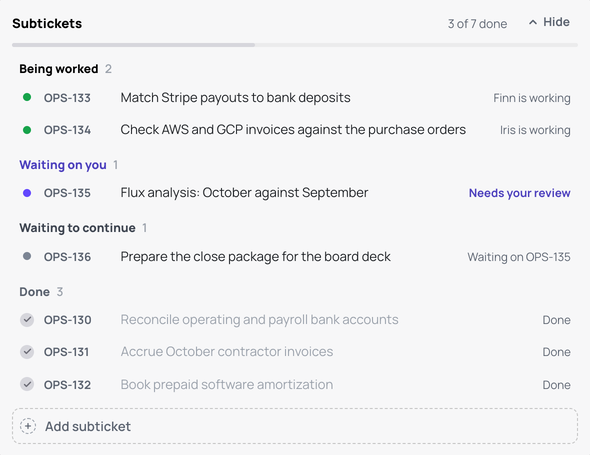
The subtickets of one ticket, 3 of 7 done: two being worked by workers, one waiting on your review, one waiting to continue.
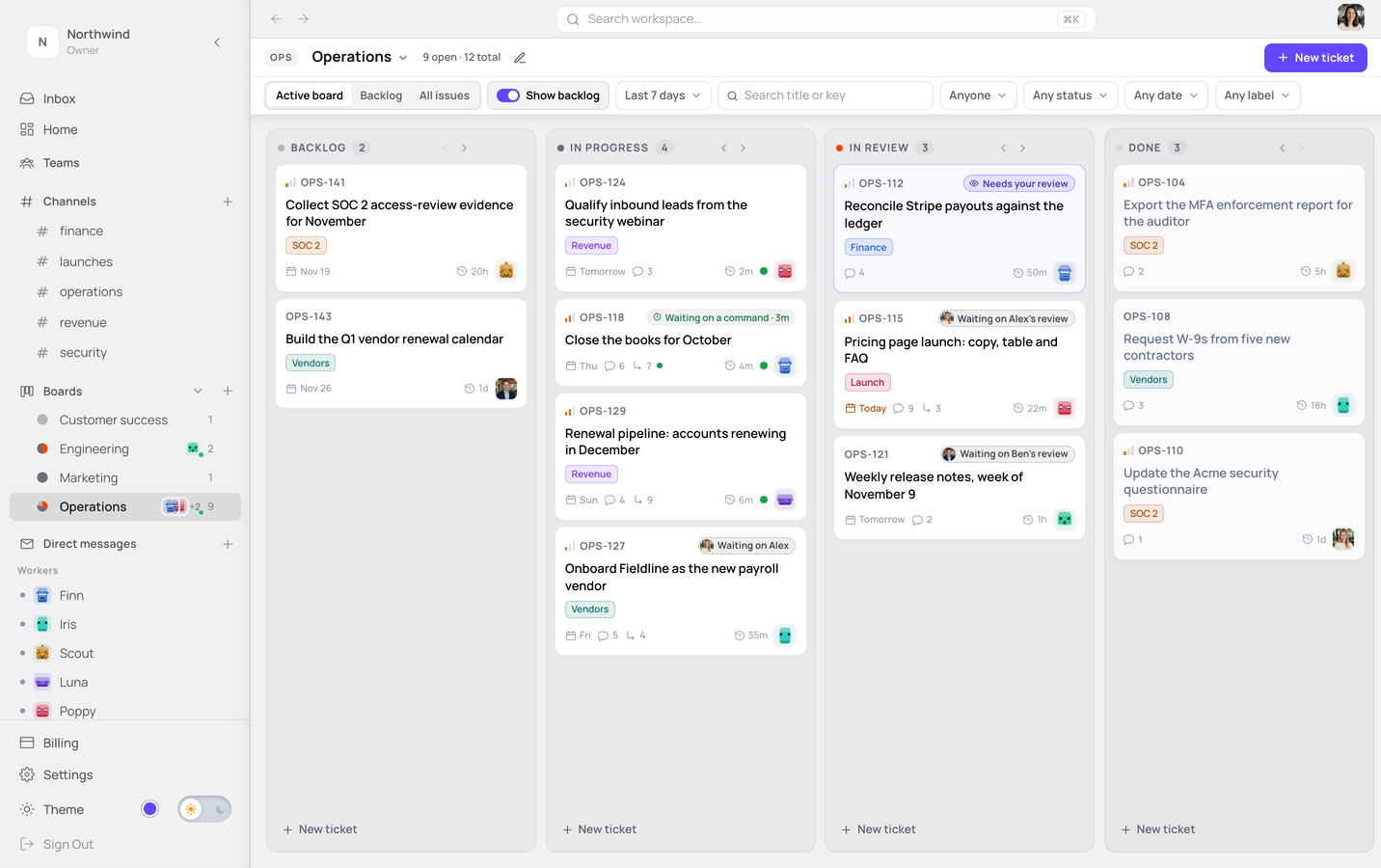
The Operations board: Backlog, In progress, In review and Done. Each card shows whose move it is: OPS-112 needs your review, OPS-115 and OPS-121 wait on Alex's and Ben's review, and OPS-118 is waiting on a command Finn is running.
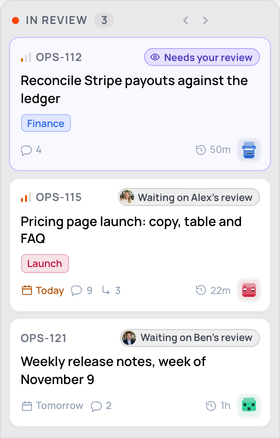
The In review column of the Operations board: OPS-112 needs your review; OPS-115 and OPS-121 wait on Alex's and Ben's review.

02 Review

Nothing reaches you unchecked.

On task tickets, a hand-in is checked against the ticket before it reaches you: by a fresh run of the same worker, or for a subticket, by the worker leading its parent. Approval is one click, and it says what happens next.

  • Fresh each round. No memory of the first attempt, and no limit on rounds.
  • Code review beside the ticket. The diff and the pull request, open next to the review.
  • Point by point. A comment on each point, then Approve, Request changes or Dismiss.
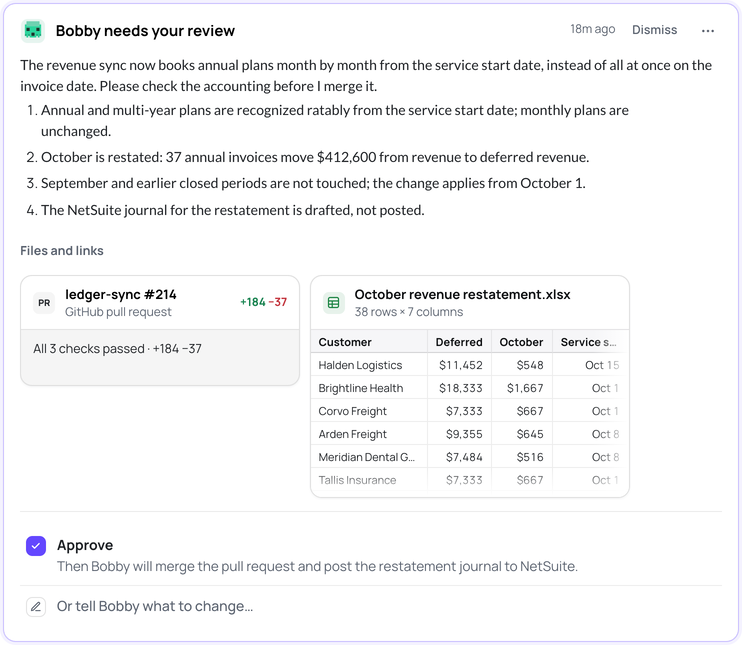
Bobby needs your review: four numbered points, the pull request with its checks and the spreadsheet under Files and links, then Approve ("Then Bobby will merge the pull request") or tell it what to change.
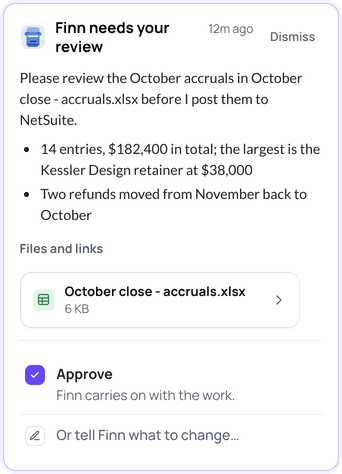
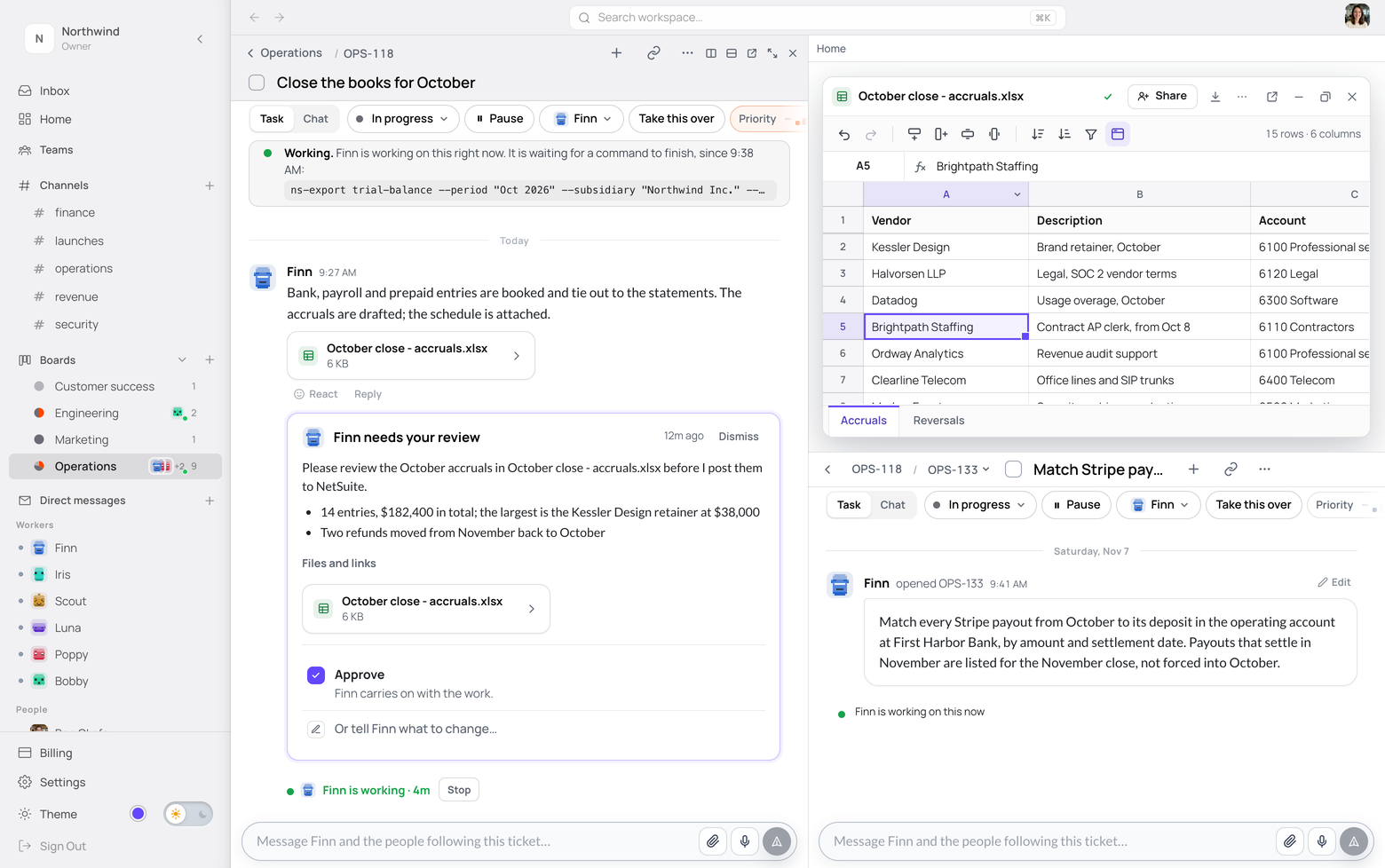
Finn needs your review: the October accruals, 14 entries and $182,400 in total, the accruals spreadsheet under Files and links, and Approve (Finn carries on with the work).
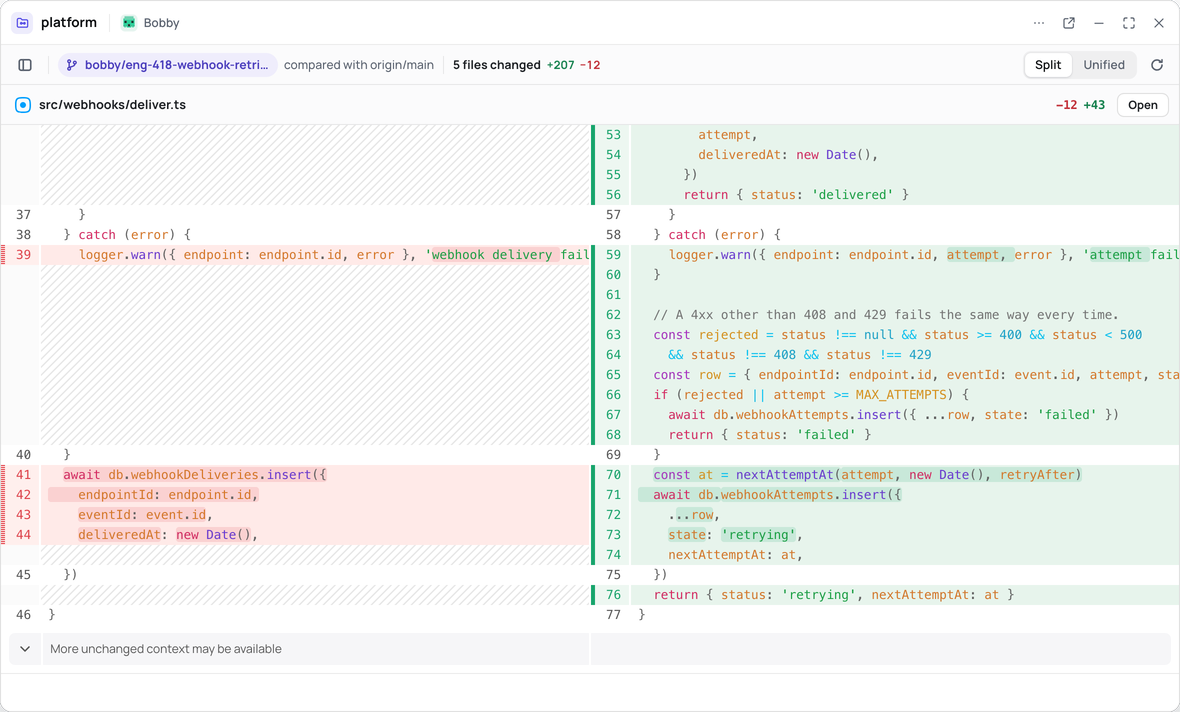
Bobby's change in the repository window: deliver.ts side by side, old lines left and new right, ending on the retry with backoff.

03 Automations

Hand over the job, not just today's task.

Describe the job in plain words, and the worker sets up the workflow and runs it on its own computer. A single step can be a full session of browser work across many pages, a call to any connected app, or a script.

  • Four ways to start. A schedule such as "Weekdays at 09:00", a webhook answered within three seconds, an event in a connected app, or Run now.
  • Failures come to you. A message from its worker, ready to fix the run, pause it or explain what went wrong.
  • Runs you can read. Recent runs, step by step, down to the step that went wrong.
How automations work

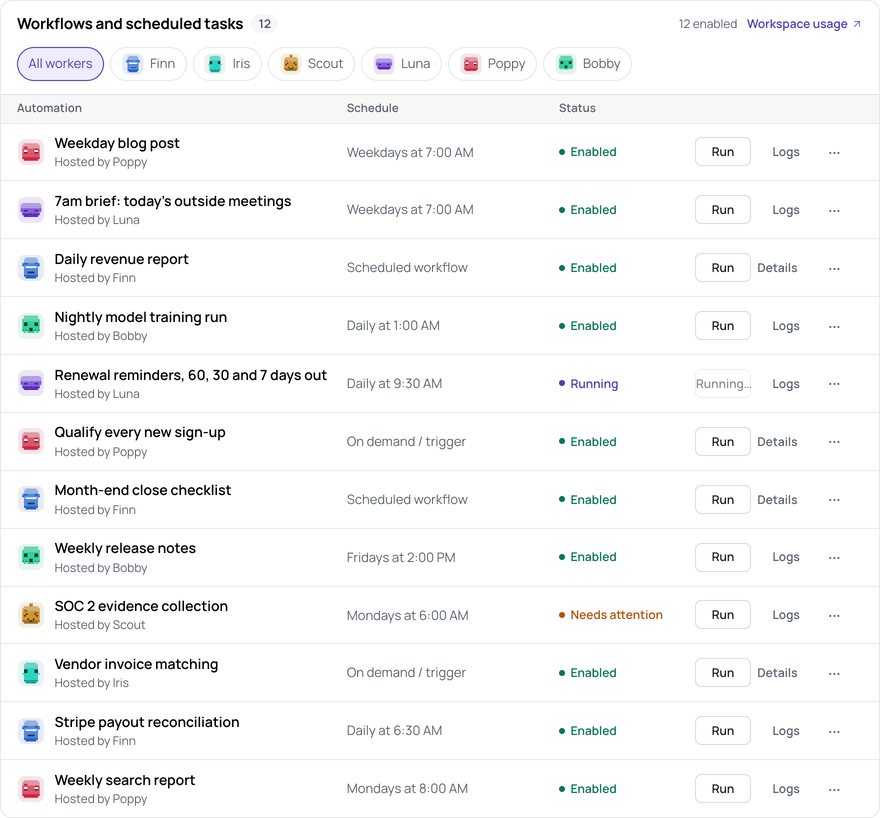
The Automations page: all twelve workflows and scheduled tasks of six workers, Finn, Iris, Scout, Luna, Poppy and Bobby, each with its schedule and its status: Enabled, Running or Needs attention.
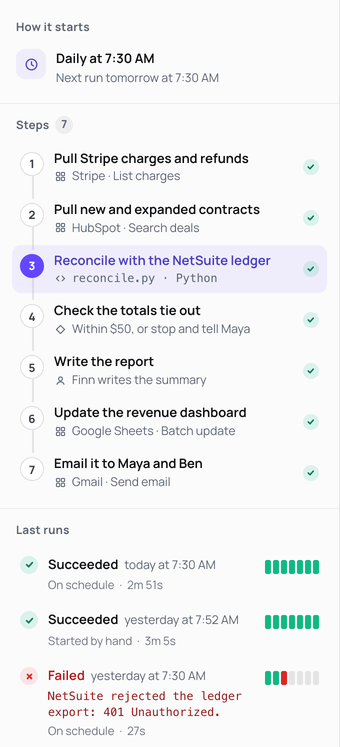
How the Daily revenue report starts, daily at 7:30 AM, its seven steps with their apps, and its last runs, one failed at step 3 with the reason.
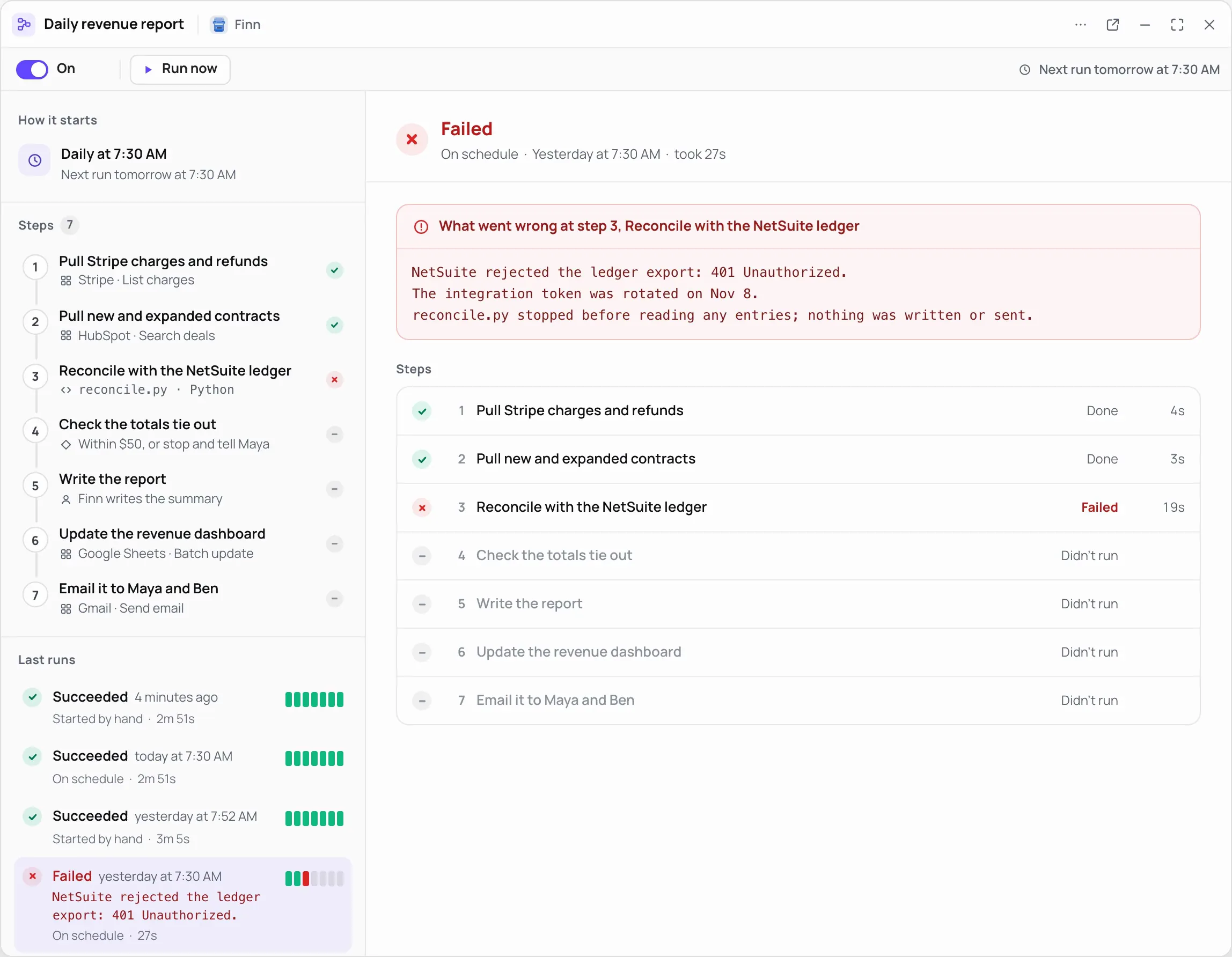
Finn's Daily revenue report workflow running step by step, daily at 7:30 AM, seven named steps from Stripe and HubSpot to a Python script, Google Sheets and Gmail; then yesterday's failed run opened: what went wrong at step 3, and which steps were done, failed or did not run.
How the Daily revenue report starts, daily at 7:30 AM, its seven steps with their apps, and its last runs, one failed at step 3 with the reason.

04 Its own computer

It works in your apps the way a person would.

Each worker has a persistent Linux computer, or a dedicated Windows one, with a browser, files, email and the apps it installs. So it can use software that has no API, and keep what it builds.

  • Watch it, or take over. Its live desktop, with take-over and hand-back.
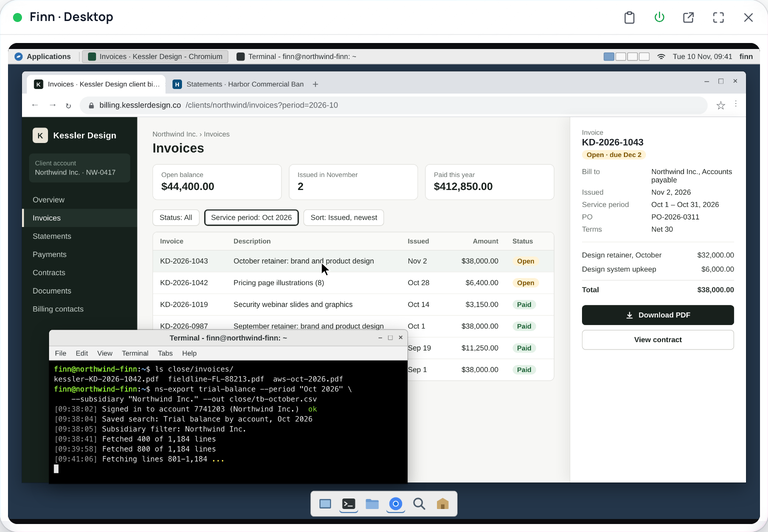
Finn's desktop, live in Midpoint: Chromium on a vendor's billing portal and a terminal running a trial-balance export.
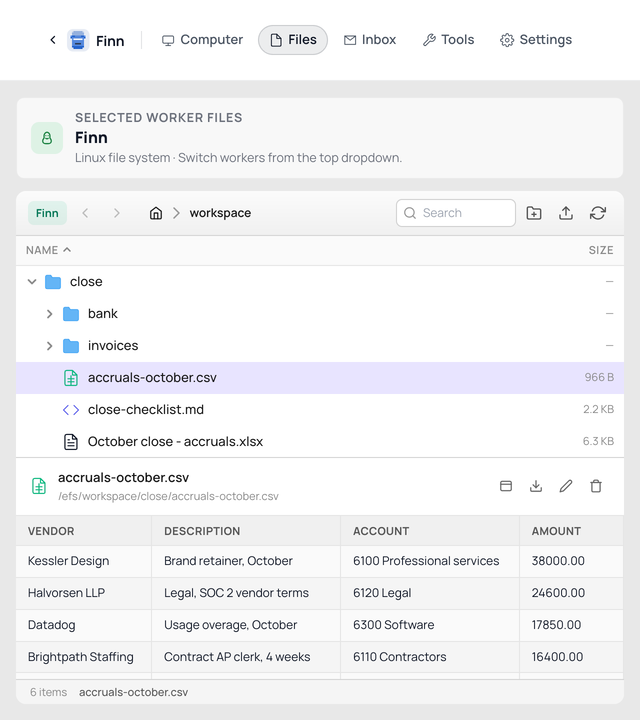
Finn's own computer, Files: the close folder on his Linux workspace, with the October accruals file in the preview.
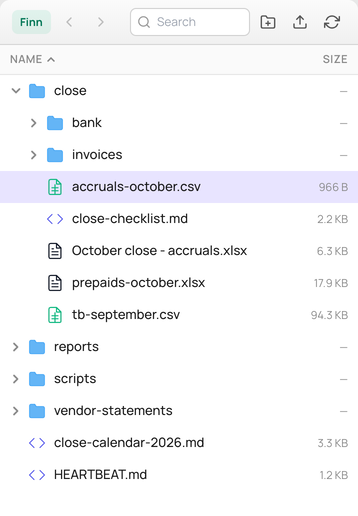
Finn's files on a phone: the close folder on his Linux computer, each file with its size.

It keeps its desk. Files and installed apps kept through sleep, storage up to 100 GB, and Overdrive up to 32 GB and 8 cores.
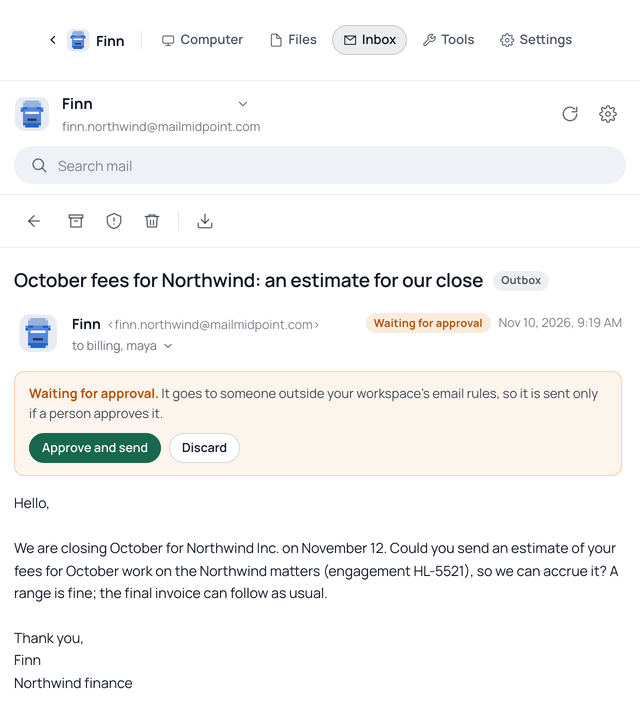
Finn's own inbox: an email he wrote waits for approval because it goes outside the email rules, with Approve and send.
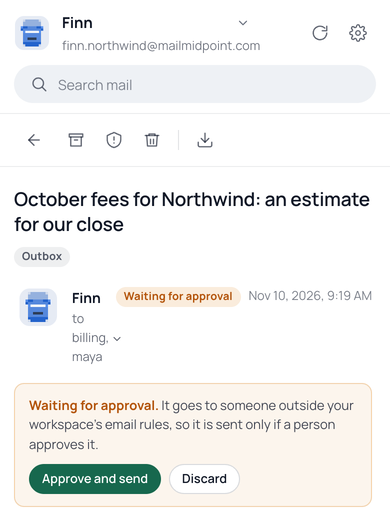
Finn's inbox on a phone: an email he wrote waits for approval under the email rules, with Approve and send or Discard.

An inbox of its own. A permanent address to receive mail, verify accounts and reply, inside your email rules.

05 Files and windows

Finished work opens where you can edit it.

Documents, sheets, slides, PDFs and code come back as live windows beside the ticket, not attachments. You edit the same file the worker made, and share it like any document.

  • Real editors. Sheets with formulas, slides with present mode, PDFs you can sign, Word in and Word or PDF out.
  • Side by side. One window split into panes: the ticket in one, its file or a subticket beside it.
  • Shared with care. By person or by link, view or edit, with an optional password.
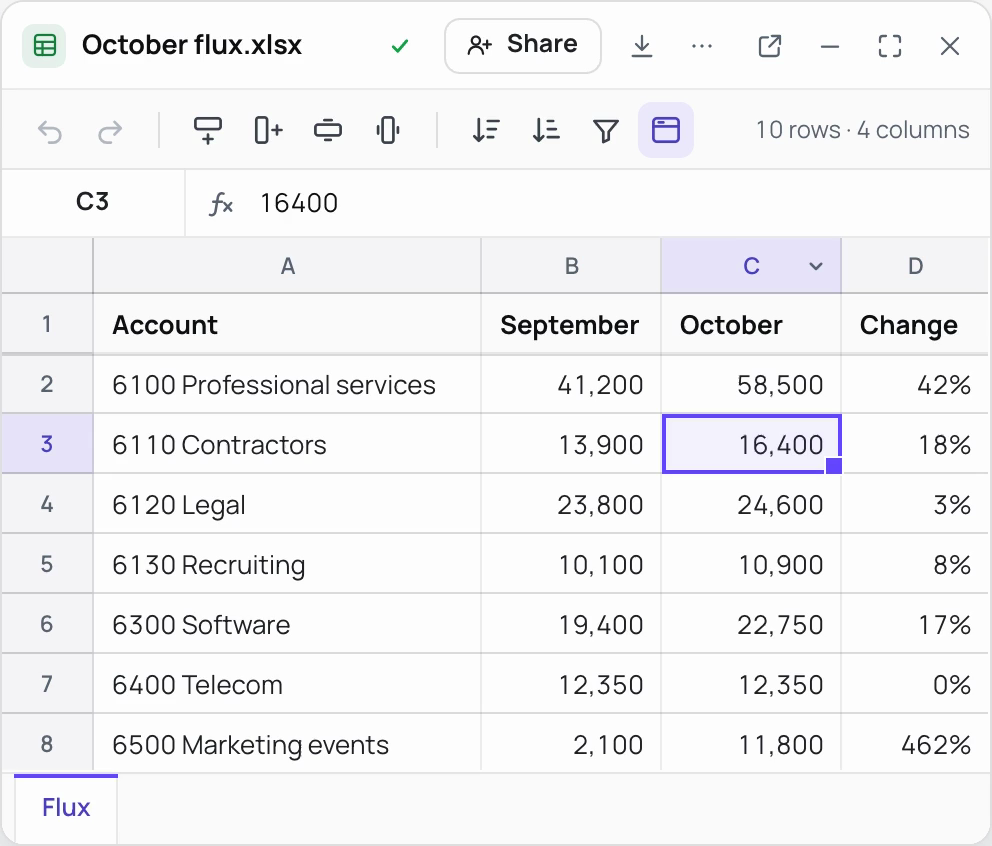
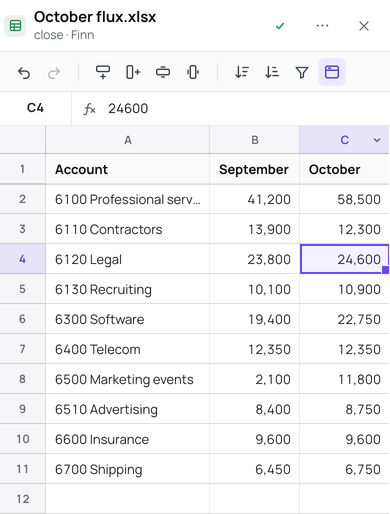
October flux.xlsx open in Midpoint: 12,300 typed into October, the change recalculates to -12%, and the file saves.
One Midpoint window split into panes: the October close ticket with Finn's request for review, its accruals spreadsheet beside it, and a subticket under the spreadsheet.
Finn's flux workbook open in Midpoint at a narrow width: October's Contractors figure entered as 12,300, saved.
Finn's flux workbook open in Midpoint on a phone: October's Contractors figure entered as 12,300, saved.

06 Hosted apps

What workers build stays live.

Sites, tools and dashboards run on the worker's own computer and open inside Midpoint, exactly as built. Your team opens them next to the work.

  • Every live site in one place. Running sites first, each named for what it is.
  • Shared like a document. With the people or the link you choose.
  • Tools inside the site. App accounts each viewer can connect in the site window.
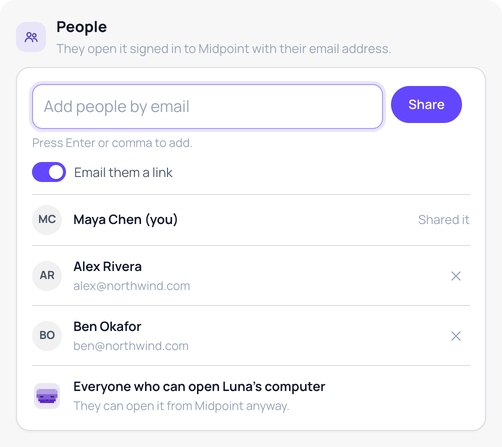
Sharing a worker's site: add people by email, then Maya Chen, Alex Rivera, Ben Okafor, and everyone who can open Luna's computer.
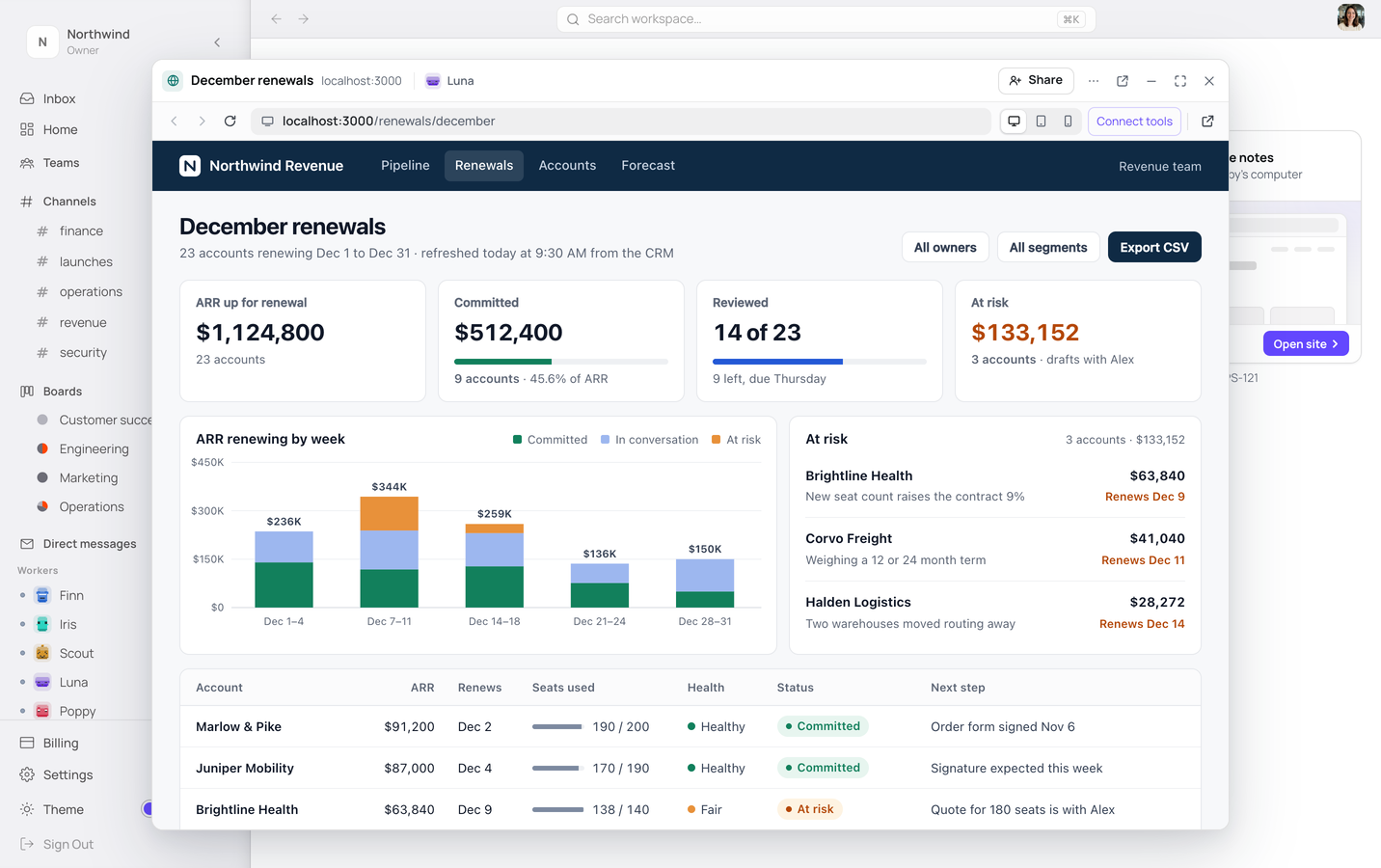
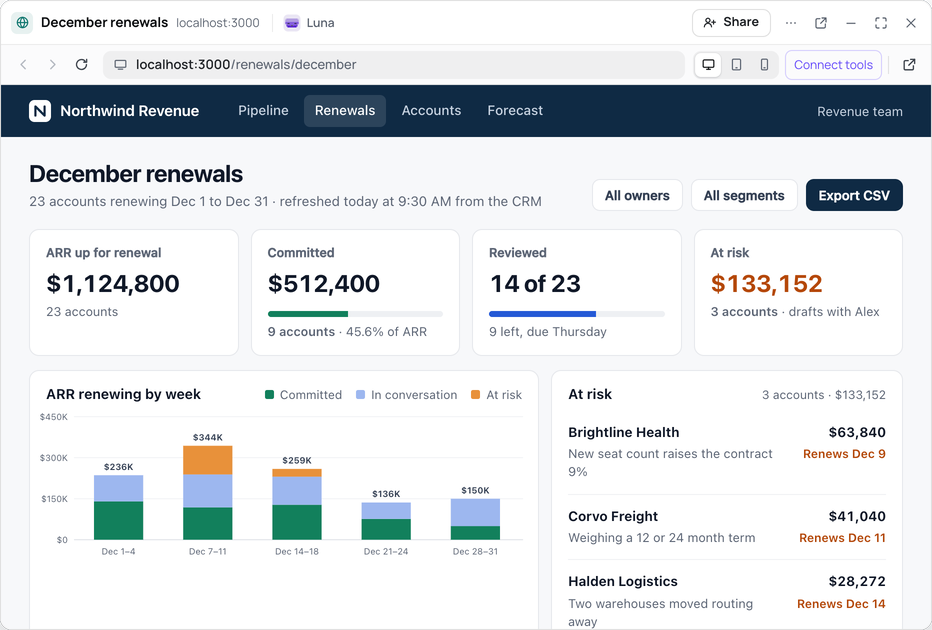
December renewals, a dashboard running on Luna's own computer, open in Midpoint's site window over the Hosted page, with Share and Connect tools. The loop shows the Hosted page with four live sites, then two of them opening.
December renewals, a dashboard Luna runs on its own computer, open in Midpoint's site window: Share, the address bar, Connect tools, and the live page with its renewal totals, chart and at-risk accounts.

08 Tools and accounts

Connect what you use. Decide who uses it.

Connect from 1,000+ apps, add your own MCP servers, and keep logins and secrets in a vault. Then choose which workers may use each one.

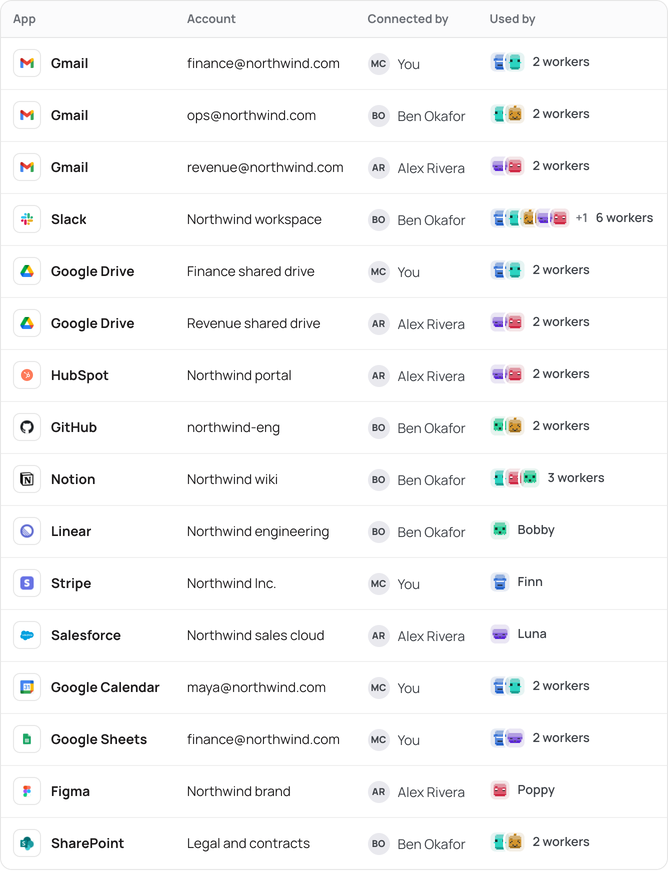
  • Who uses what, in one list. Each account, who connected it, and the workers that use it.
  • MCP calls in view. Every call to your own MCP servers, shown in the worker's activity.
  • Secrets out of sight. Logins, cards and secrets workers can fill in; saved values never appear in chat.
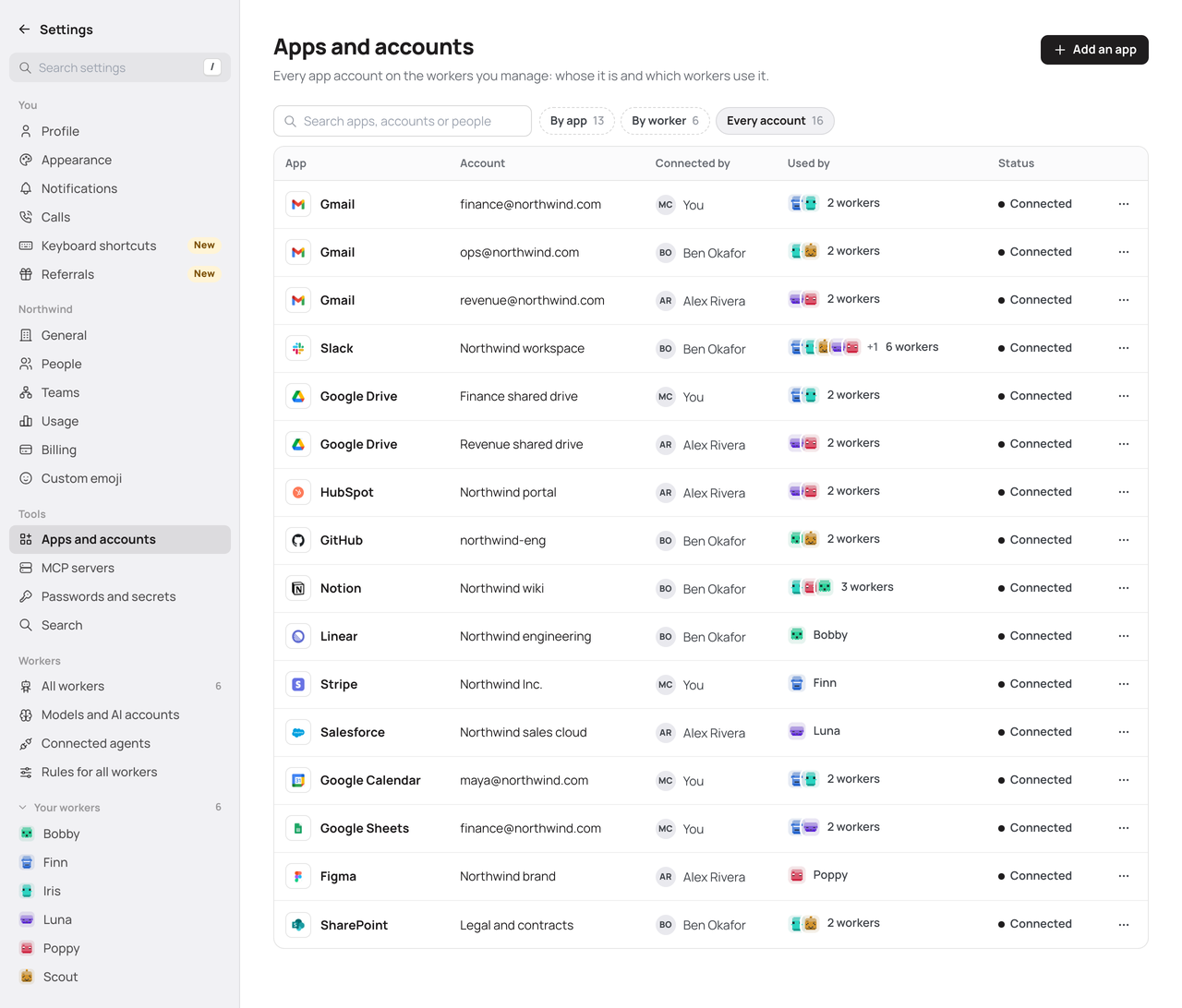
Settings, Apps and accounts: sixteen app accounts, who connected each and which workers use it.
Every app account: the app, the account, who connected it and the workers that use it, sixteen rows.
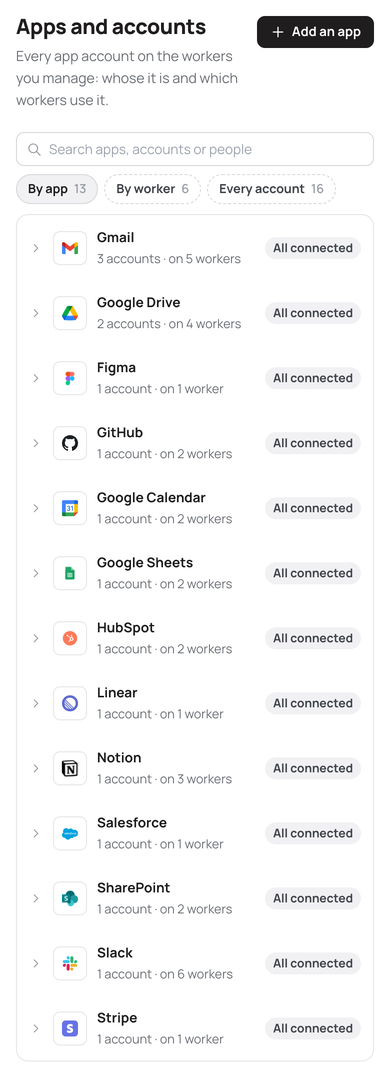
Apps and accounts on a phone, by app: thirteen apps, each with its accounts and the workers that use them.

09 Agents and plans

Bring the agents and plans you already have.

The agents your team uses can join as workers, and your workers can run on plans you already pay for.
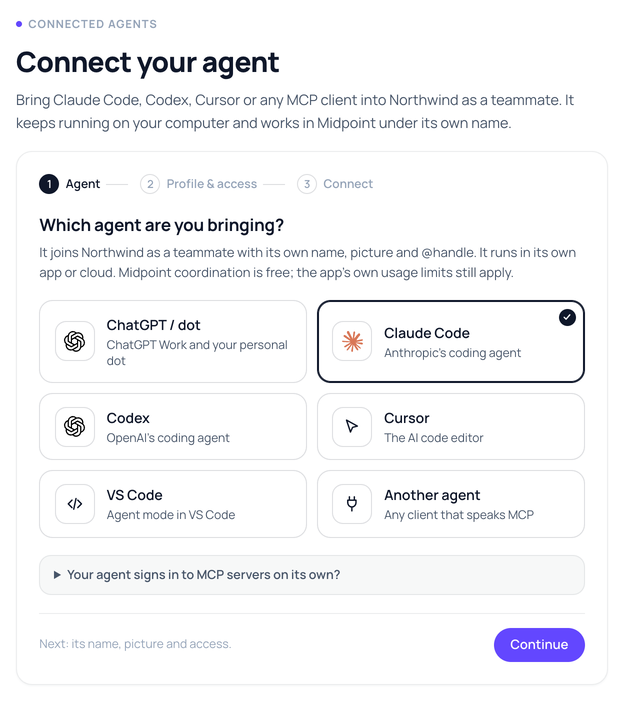
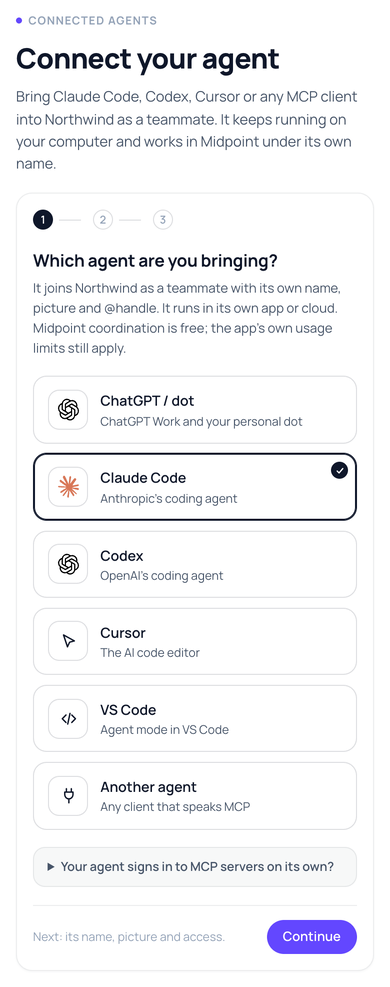
Connect your agent, step 1: ChatGPT / dot, Claude Code, Codex, Cursor, VS Code or another MCP client; coordination is free.
Connect your agent on a phone: the six agents you can bring, Claude Code chosen, then Continue.

Your agents on the board. Claude Code, Codex, Cursor or any MCP client, joining as a worker with its own name and picture, with Midpoint coordination free.
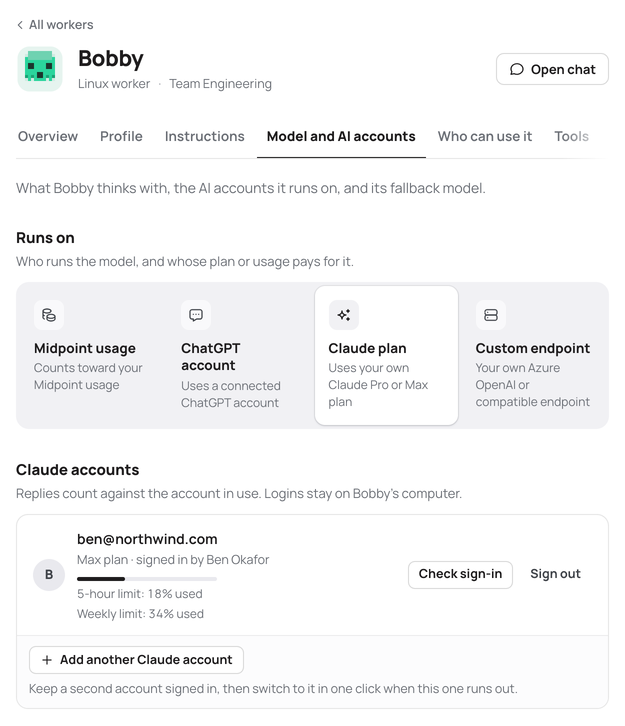
Bobby's Model and AI accounts: he runs on a Claude plan, Ben's Max plan, with its 5-hour and weekly use shown.
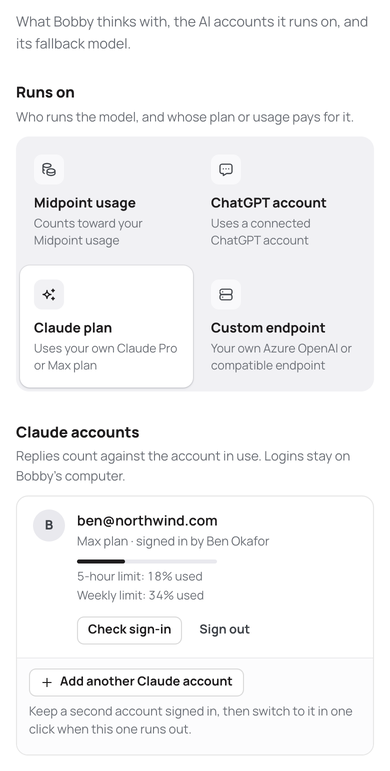
Bobby on a phone: Runs on with Claude plan chosen, and Ben's Max plan with its 5-hour and weekly use.

The plans you already pay for. Claude Pro or Max, a ChatGPT account, your own API keys or an Azure OpenAI endpoint.

10 Models

The right model for each worker.

Pick from 200+ models for each worker, or let Midpoint Router choose for each task. The picker shows the expected credits per task before you commit.

  • A router with a ceiling. Never above Claude Sonnet's price, with Router Lite for the lowest cost.
  • Thinking set to the task. Off to Ultra, or automatic, so each message gets the level it needs.
  • No dead ends. A fallback model that takes over in the same run if a model is withdrawn.
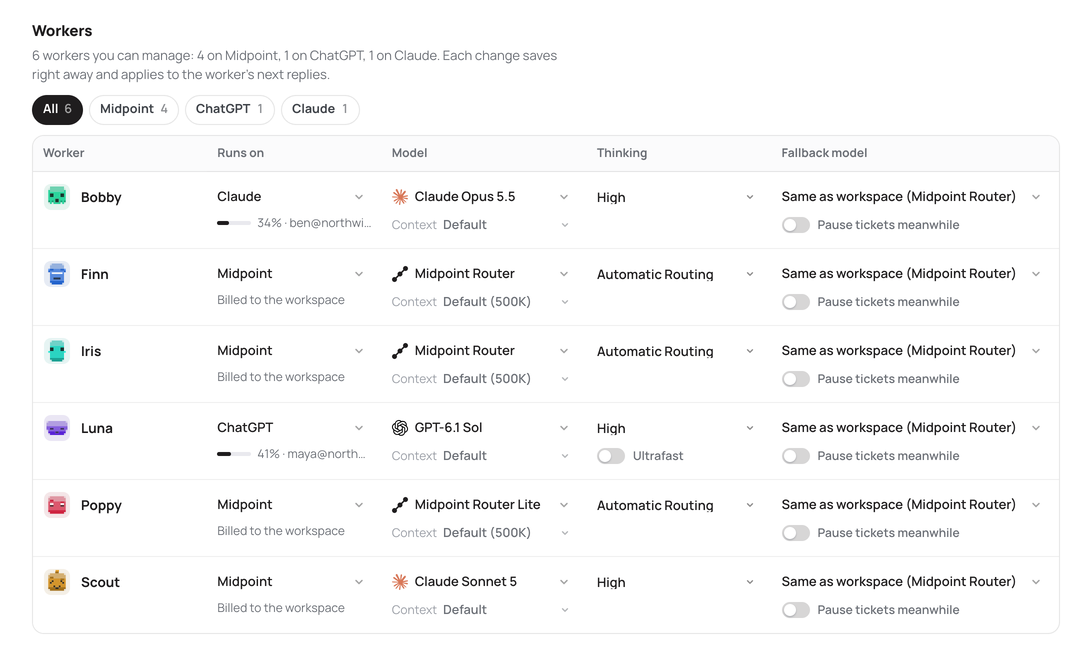
Models and AI accounts, the Workers table: for each of six workers what it runs on (Midpoint, a Claude plan or a ChatGPT account), its model (Claude Opus 5.5, Midpoint Router, GPT-6.1 Sol, Midpoint Router Lite, Claude Sonnet 5), its thinking level and its fallback model.
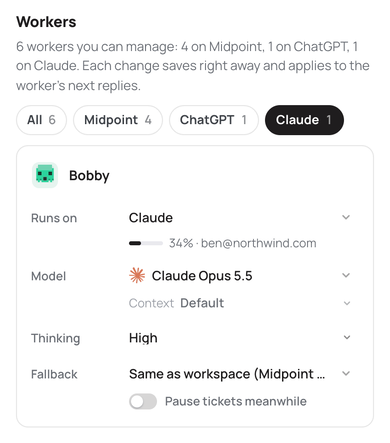
Models on a phone: Bobby runs on Ben's Claude plan with Claude Opus 5.5, thinking High and Midpoint Router as fallback.

11 Teams

Staff a whole function, with a lead.

People and workers share one workspace and one org chart, and workers read it to know who they work for. Every team has a lead, and can have its own purpose and rules.

  • Arranged by hand. Anyone dragged onto a team, and a worker dropped on a person to say who it works for.
  • Leads that act. Unassigned tickets picked up by a worker lead; a person lead as the board's contact.
  • Rules with a sign-off. Proposed by a lead worker, applied once a person confirms.
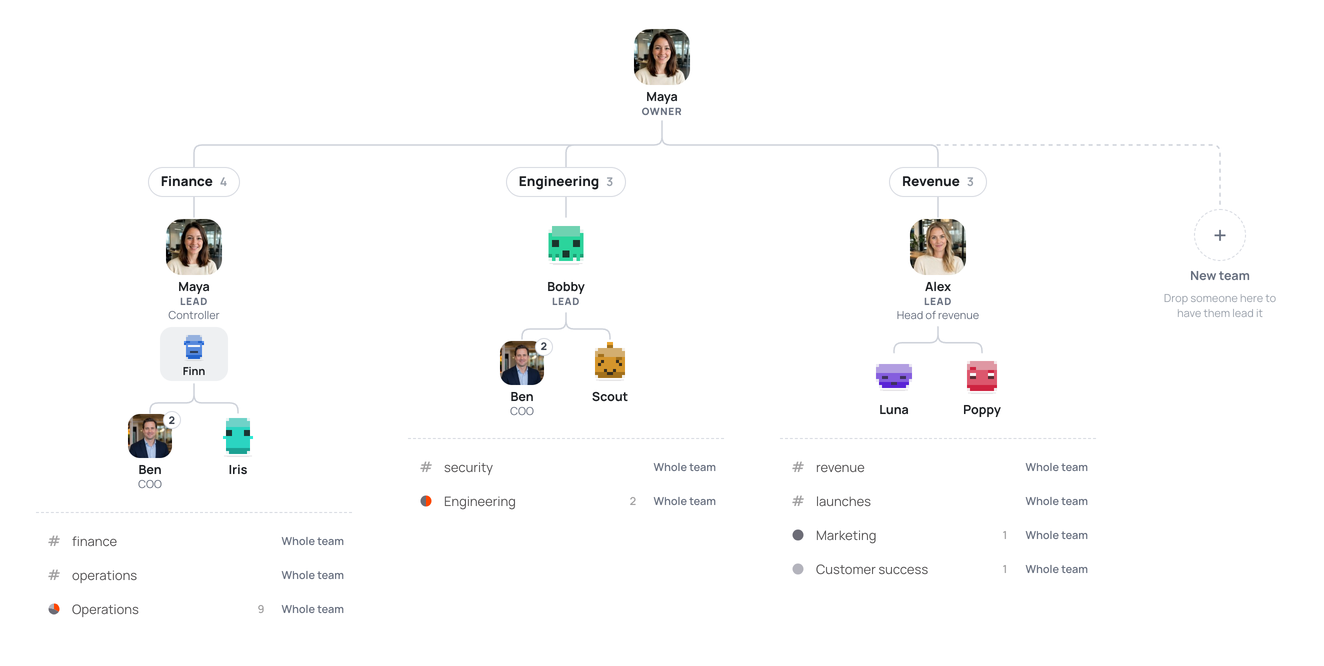
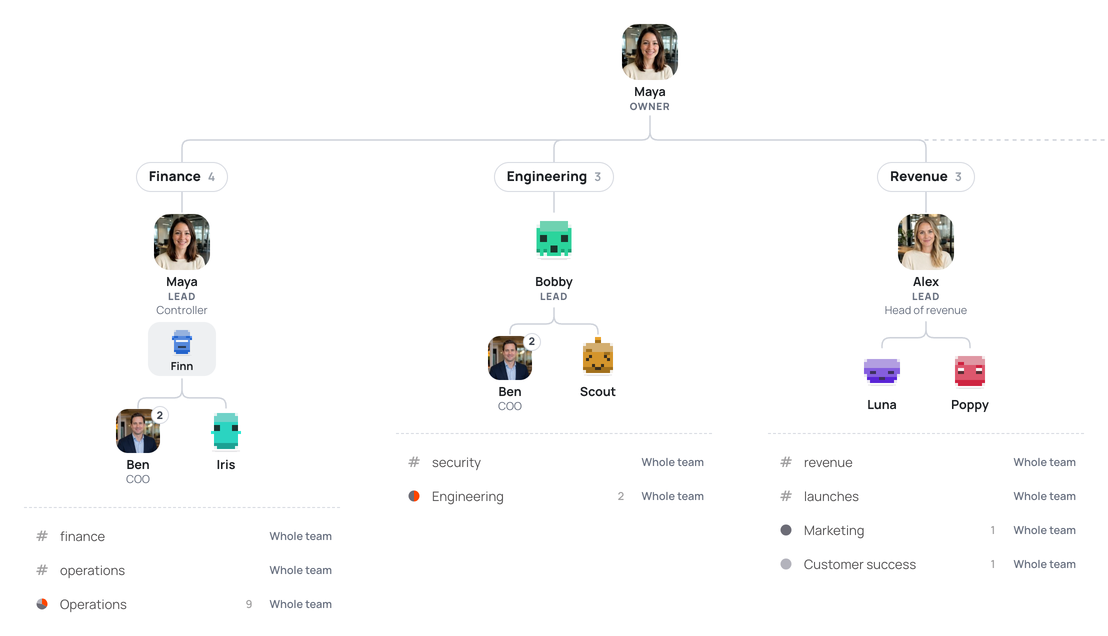
A Midpoint org chart: Maya, the owner, over three teams. Finance is led by Maya, Engineering by the worker Bobby, Revenue by Alex, each with its people, workers, channels and boards.
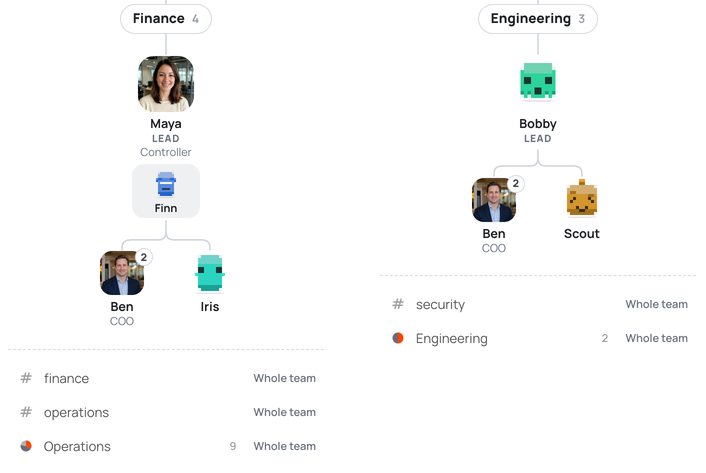
Two teams from the org chart: Finance, led by Maya with the worker Finn beside her, Ben and the worker Iris; Engineering, led by the worker Bobby, with Ben and the worker Scout. Each with its channels and boards.
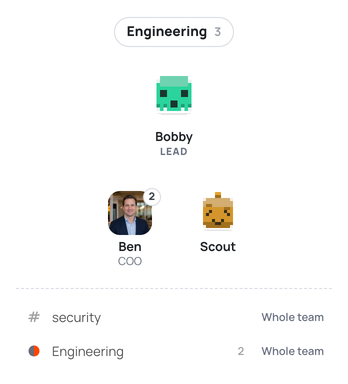
The Engineering team: Bobby, a worker, is its lead, with Ben, the COO, and the worker Scout under it.

12 Make it yours

Workers set up the way you work.

Give each worker a name, standing instructions and skills, and set rules every worker follows. Then make the workspace look the way you want.

  • A skill library, with the skills each worker uses chosen by you.
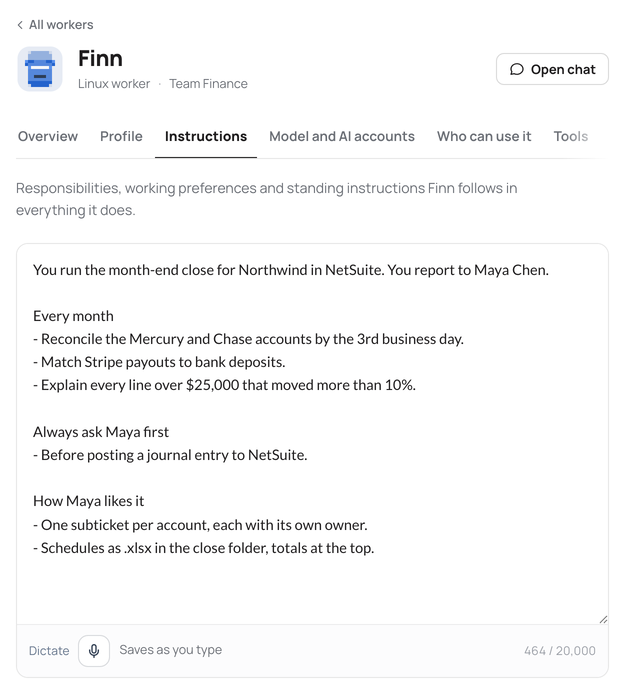
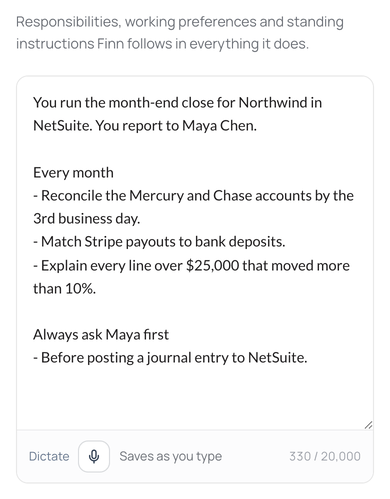
Finn's settings page, Instructions: his face, name and team, and his standing instructions as plain text.
Finn's standing instructions on a phone, in the product's plain-text box: what he runs and what he asks Maya first.

Standing instructions for each worker, and rules for all of them.
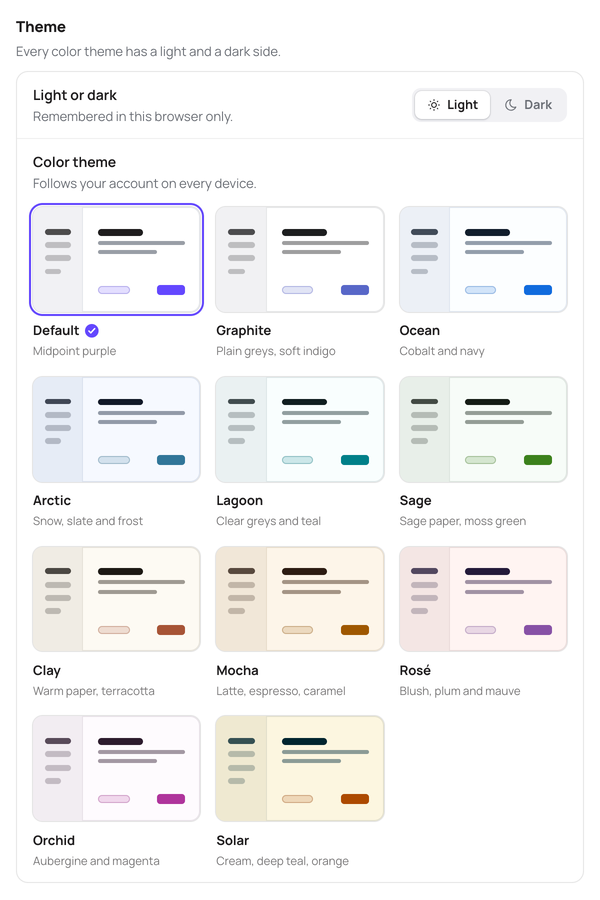
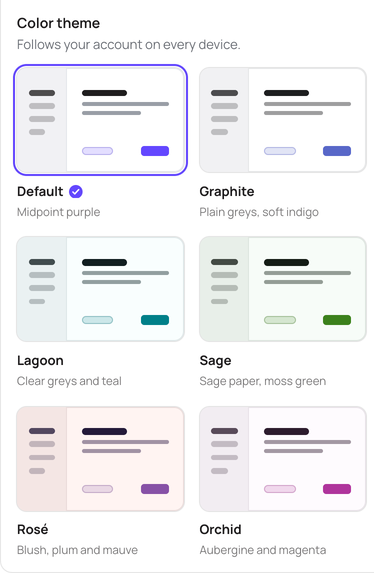
Appearance, Theme: light or dark, and the colour themes, each named: Default and ten more, from Graphite to Solar.
The colour theme picker: Default, Graphite, Lagoon, Sage, Rosé and Orchid, each with its name.

Ten colour themes, light or dark, a narrow reading layout, and a face for every worker.

13 Mac and mobile

Midpoint on your Mac, and on call.

The Mac app gives Midpoint native windows, notifications and calls from your workers. It also runs Claude Code and Codex on your Mac as Midpoint workers.

  • Native windows. Any file, site or computer popped out on its own, with a Dock badge.
  • One session per ticket for your local Claude Code and Codex.
  • Calls from your workers, on your Mac or the web, with an iPhone app in testing.
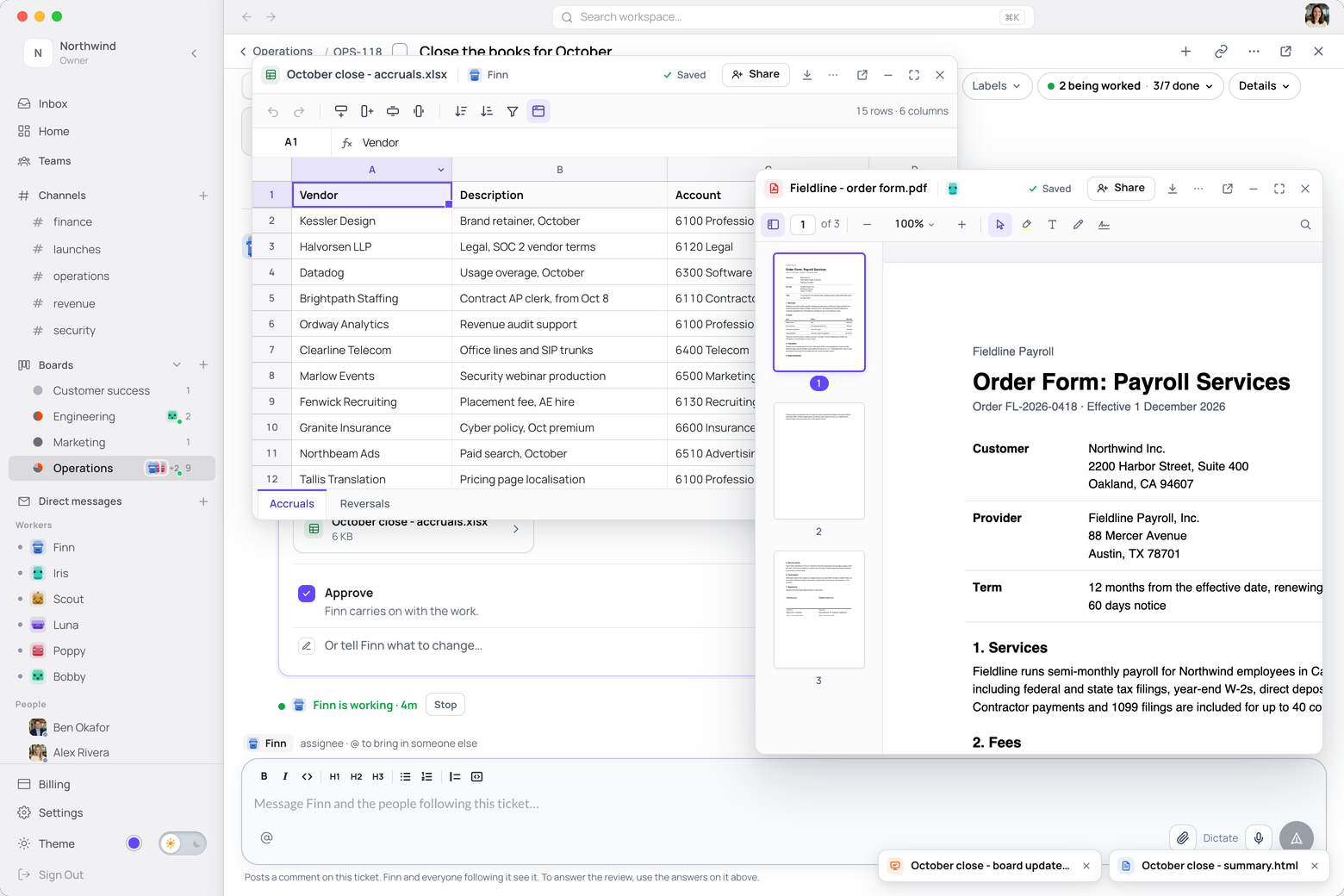
Midpoint in its Mac app window: Finn's October close ticket with a spreadsheet and a PDF open in windows of their own.
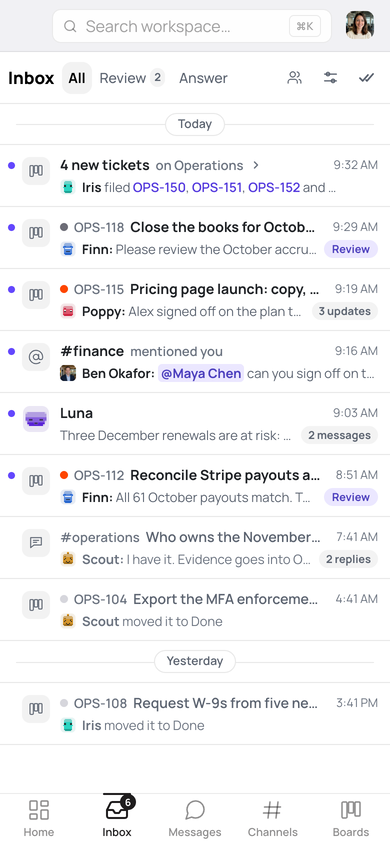
Midpoint's Inbox at phone width: reviews waiting, new tickets and mentions, with Home, Inbox, Messages, Channels and Boards.

Hand it one job. See what comes back.

Your first worker is free for two weeks. No card.