Blog Workflow Automation Guides
Google Sheets to Google Calendar
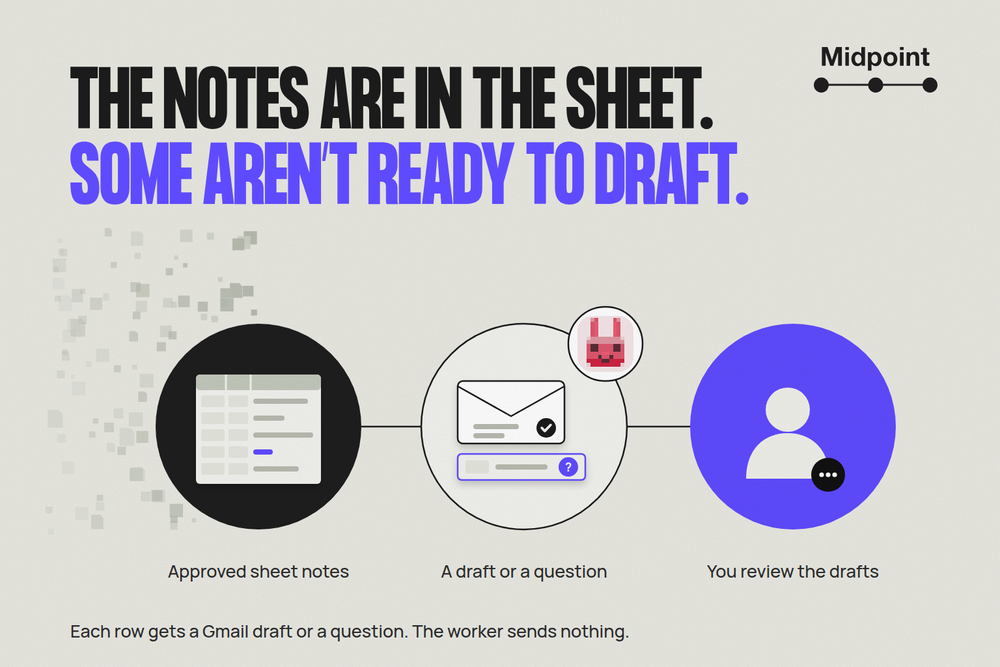
Give your worker the approved workshop list. It adds or updates calendar events, writes what happened beside each row and asks about unclear times.

The workshop list is approved, but the team calendar is out of date. A room changed, a session moved, and a new workshop still needs an event. Someone has to fix the calendar and make sure nothing is added twice.
Give that job to a Midpoint worker: “Put the approved workshops from this sheet on our team calendar. Update the existing events when dates or rooms change. Write what happened beside each row, with an event link when available, and ask me about unclear times.”
The worker makes the calendar changes and writes what it did back to the sheet. You can see which events were added, which changed, which stayed the same and which still need an answer. You don't have to compare the whole list with the calendar yourself.
Check each workshop and update the calendar
Maya coordinates a team's workshops. Before changing anything, her worker confirms which sheet and calendar to use, which rows are approved, and which column it can write in without touching her notes. Then it checks each workshop's date, times, time zone and room. Before adding a workshop, it checks the calendar for an existing event. If it can't tell whether one exists, it asks Maya to confirm.
Intro to Forecasting is new. Its approved row says November 12, 10 to 11 a.m. Pacific, Room 4. The worker adds it to the team calendar, checks the saved details and puts a link to the event beside the row.
Writing Clear Briefs already has an event. Its date has moved from November 14 to November 16, and its room has changed to Room 6. The worker follows the saved event link, changes those details and checks them. The event keeps its existing link.
Customer Panel says “3 p.m.” but has no time zone. The worker asks Maya which time zone she means. It doesn't add an event while it waits.
The sheet now tells Maya what happened:
- Intro to Forecasting: Added. November 12, 10 to 11 a.m. Pacific, Room 4. Event link saved.
- Writing Clear Briefs: Updated. November 16, Room 6. Same event link.
- Customer Panel: Needs an answer. Is 3 p.m. Pacific or Eastern? No event added.
- Team Onboarding: No change. The calendar still matches the approved row.
Maya can open the events from the sheet. She can also answer the time-zone question and ask the worker to finish that workshop without redoing the rest.
Decide who gets notified
Maya tells the worker whether to add guests and which invitations or update notices she wants. The worker checks what the calendar lets it control before making changes. Google Calendar may still send notices even if she tells the worker, “Don't email anyone.”
They also agree where changes start. Here, Maya approves changes in the sheet and the worker applies them to the calendar. Edits made in the calendar don't change the sheet. If someone edits an event directly, the worker points it out and doesn't overwrite it unless Maya has said it should.
The worker stays within the agreed calendar and asks Maya about missing details. If it can't find an event, it asks her what to do before creating a replacement.
Choose how to maintain the calendar
For a clean list you only need to add once, Google Calendar's CSV or ICS import may be enough. It copies the events into Calendar. Later sheet edits won't update them.
Google's Sheets-to-Calendar tutorial shows how to create events with a script. Add-ons such as Calendar Events Creator and Sheets2GCal can also keep a sheet and calendar in step. Choose an add-on if its rules fit and you're happy to manage it. Other tools can update events and avoid duplicates too.
A Midpoint worker can set up the job, check the saved events and ask you about incomplete rows. You give it the list and the rules, then review the changes and questions it brings back.
Keep using the same events
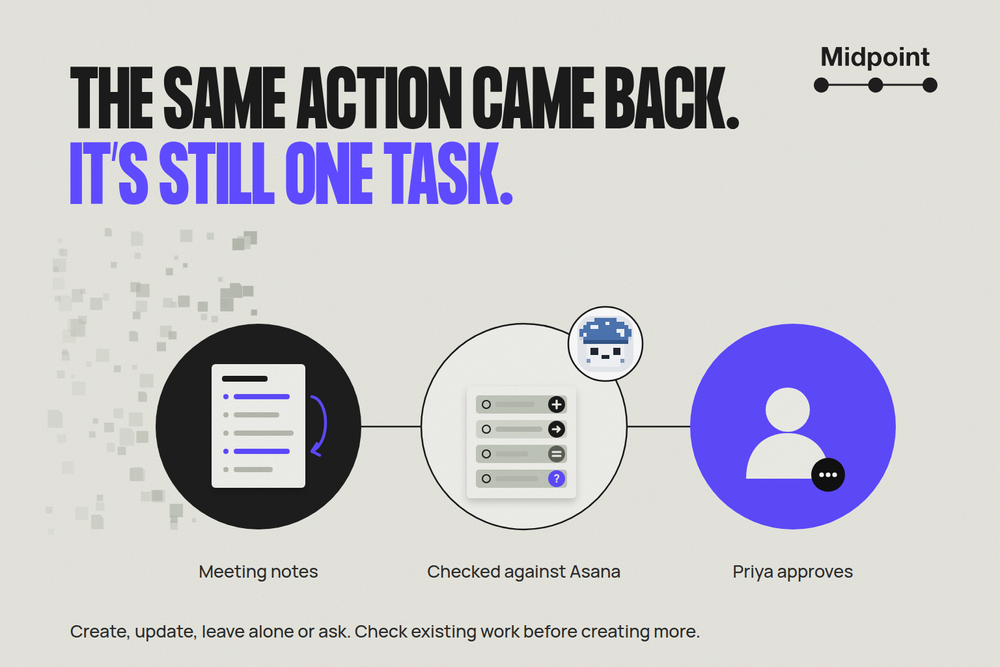
When Maya asks for the next update, the worker checks the saved event links first. It changes only approved details that differ and leaves matching events alone. If an event is missing or won't open, it investigates and brings Maya any question it can't resolve. For regular checks, Maya and the worker agree when to run them. A one-off request doesn't start a recurring job.
For more jobs like this, see operations work you can hand to a worker. For help finding a time people can attend, see interview-panel coordination.
Your Midpoint worker already has its own computer and browser. Connect the Google apps or save the logins it needs, then ask it to set up and run the calendar job. Once the account is connected, agree a schedule with the worker if you want regular updates.
Put the approved workshops from this sheet on our team calendar. Update existing events when approved details change, and write what happened beside each row, with an event link when available. Ask me about missing times or time zones. Before making changes, agree with me who gets invited or notified, and what to do if someone edits the calendar directly.