Stop checking order status in five different tabs
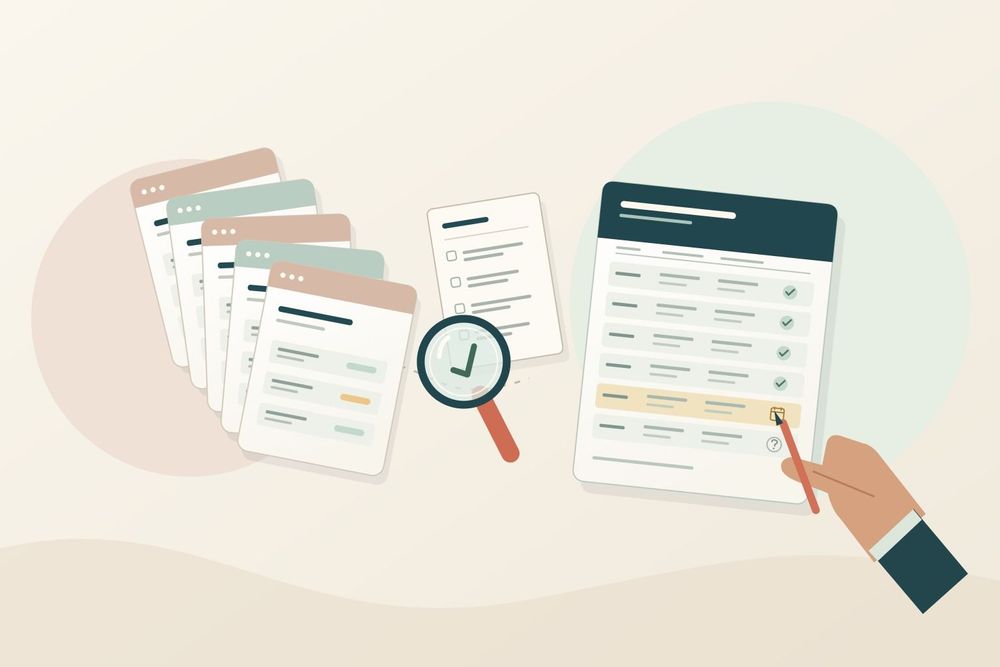
Illustrative example. The purchase orders and results are invented to show the intended output. No supplier portal was accessed for this example.
Your purchasing sheet says the order arrives Friday. The supplier portal says Tuesday of next week. Spotting that difference on one order takes a minute. Spotting it across forty open orders, spread over several supplier sites, is the kind of job that slides to the bottom of Monday.
Here's a first job for a Midpoint worker that never changes your orders. It reads, it compares, and it brings back the few lines you need to act on.
Why start with read-only
A worker with its own computer and browser can look orders up in a supplier portal the way a buyer would. Checking status doesn't require permission to edit an order, cancel it or message a supplier. So don't give it any. A first task with no portal write access is easy to approve and easy to check, and it brings back a useful result.
Available fields and permissions vary by portal. Oracle, for example, lists separate privileges for viewing and changing an order. Use a view-only account where the supplier offers one. If it doesn't, start with an export instead of a login that can change orders.
Give it a list, not a goal
"Check our suppliers" is a wish. A list is a job. Attach a dated export of the open-order sheet, with one row per order:
- the supplier and your PO number
- the supplier's order number, if you have it
- the status, delivery date and quantity you currently have
Then give the worker authorized read access to the portal and say plainly what it may not do:
Compare these six open orders with the supplier portal. Read only: don't change orders, edit the master sheet or contact suppliers. Match exact order references and check status, delivery date and quantity. Return a comparison file and a short list of changes. Keep the sheet values and the portal values separate so I can see what changed.
The portal tells you what the supplier says today. That isn't the same as the goods being on your dock.
Match the order first, then compare
For each row, the worker confirms the supplier account and the exact order reference. Only then does it note the status, the expected date and the quantity it can see, along with the time it looked. If the page says "processing," the report says "processing." It doesn't turn that into "on schedule."
What comes back
The useful part is two things together: a short note about what needs you today, and a full comparison file so you can check any row without searching again.
In our invented example, six orders went in. Four match the sheet, one has a different delivery estimate, and one could not be found. The note might read:
Two orders need attention. PO-1042 is estimated for October 6 in the portal, and our sheet still says October 2. Both show 20 units and the status is still "processing."
I couldn't find PO-1046 using its exact reference. There's a similar-looking order, but I haven't treated it as a match.
The other four match the sheet. The comparison file has the values, page links and check times. I haven't edited any orders or contacted any supplier.
A file that still makes sense tomorrow
Each row of the comparison should keep:
- the order reference
- the sheet's status, date and quantity
- the portal's status, date and quantity
- when the worker checked
- a link or screenshot of the page it read
Blanks stay blank. A "probably the same order" never gets counted as a match. If the supplier calls PO-1046 "SO-7782," a person can supply that mapping. The worker shouldn't invent it. It finishes the five orders it can identify and leaves the sixth waiting.
Supplier pages often require a sign-in, and order data is private. Keep the report and screenshots in a private ticket or channel your team can open, not behind a public link.
What happens next
This is where a shared workspace earns its place. The comparison file becomes someone's next input. You could ask another worker to draft a follow-up to the supplier about PO-1042, or give a teammate the missing PO-1046 lookup.
A read-only comparison doesn't give anyone permission to send that follow-up, so that stays a separate yes. But once the comparison is reliable, the worker can run it every morning and post the changes to your purchasing channel, where the people who act on them already are.
Start with one supplier and a short list in Midpoint. Ask for a checked comparison, not another summary you have to verify yourself.
More articles

AI Agent Incident Communication Plan: Templates, Cadence, and Evidence
A practical AI agent incident communication plan with severity criteria, stakeholder templates, status cadence, evidence, and follow-up.

AI Agent Data Privacy Checklist: Controls That Hold Up in Production
A practical enterprise checklist for classifying agent data, minimizing access, controlling retention and transfers, redacting evidence, reviewing vendors, and proving incident readiness.

AI Agent Observability Tools Compared: A Practical Buyer Guide
Compare eight AI agent observability approaches by traces, tool calls, evaluations, cost, privacy, alerts, deployment, and OpenTelemetry support.